
There’s a specific kind of paralysis that hits when you decide to start doing digital marketing for real. You open a new tab to “find the right tool,” and forty minutes later you’ve got fifteen browser tabs open, three “best digital marketing tools” listicles contradicting each other, and you still haven’t picked anything. Sound familiar? It happens to almost everyone who starts out, and honestly, it’s not your fault. The tools industry has an incentive to make this feel complicated. More confusion means more affiliate clicks.
Here’s the thing though. You don’t need fifty tools. You need maybe eight or nine, one for each job that actually matters, and most of them have a free tier that’s genuinely usable, not just a crippled demo designed to nag you into paying. This list is built around that idea. Instead of throwing fifty logos at you and calling it a day, we’re going category by category (website, SEO, content, design, social, email, analytics, and a few others) and picking the two or three tools in each that are actually worth your time when you’re starting from zero.
Free versus paid isn’t really an either-or decision here either. Most of what’s below starts free and only asks for your credit card once you’ve outgrown it, which is exactly how it should work. You’ll walk away from this with a working starter stack, not just another bookmarked list you never open again.
One more thing before diving in. This list is organized by what each tool does for you, not by hype or how often a tool shows up in your YouTube recommendations. Website tools first, because you need somewhere to send people. Then SEO and content, because those shape what you actually put on that site. Then design, social, and email, because that’s how people find and stay in touch with what you’ve built. Analytics closes it out, because none of the rest matters if you’re not watching what’s working. Jump straight to whichever section solves your current headache, or read straight through if you’re starting completely from zero.
How This List Was Put Together
Before jumping into the picks, it’s worth being upfront about how these tools made the cut, because “best tools” lists get thrown around a lot and most of them are just recycled affiliate links dressed up as advice.
Three things mattered here. First, can someone with zero background actually use this without watching four tutorial videos first? Second, does the free tier let you do real work, or is it just a taste designed to get you to pay within a week? And third, is the tool still actively maintained and relevant right now, not something that peaked in 2019 and has been coasting since.
One more thing worth saying: “beginner” in this context means someone setting up their first few campaigns, their first client site, or their first small business presence online. It’s not aimed at enterprise teams with a dedicated ops department. If that’s you, most of this list still applies, you’ll just move through the free tiers faster than most.
There’s also a filtering decision baked into every category below that’s worth being upfront about. A lot of “best tools” content tries to list every option under the sun, five, six, sometimes ten tools per category, which sounds thorough but actually makes the decision harder, not easier. Every category here sticks to two or three picks: a free option (sometimes two), and a paid option worth graduating to. If a tool didn’t make the cut, it’s usually because it does something a beginner doesn’t need yet, or because a cheaper alternative covers 80% of the same ground.
Pricing changes constantly in this industry, sometimes every few months, and a few of the tools below have raised prices or cut their free tier limits more than once in the last year alone. Everything mentioned here reflects what these tools charge as of this writing, but always double-check the vendor’s own pricing page before you commit a card number, especially for anything with a free trial that quietly turns into a subscription.
Website & Landing Page Tools
Almost everything else on this list points somewhere. SEO work, social posts, email campaigns, they all eventually funnel a stranger toward a page you control. So a website, or at minimum a landing page, is step zero. Skip this and you’re basically building an engine with nowhere to send the exhaust.
There’s also a decision buried in this category that trips a lot of beginners up: full website versus single landing page. If you’re a service business, a blog, or anything with more than one thing to say, you need an actual site with multiple pages. If you’re launching one specific offer (a course waitlist, a lead magnet, an event), a single landing page might be all you need for now, and building a whole site around it is just wasted time you could spend on the offer itself.
A quick note on SSL certificates too, since beginners rarely know to ask about this until something goes wrong. That’s the padlock icon next to a URL, and it’s what keeps a browser from flagging your site as “not secure” to visitors. Every builder and host mentioned below includes one for free at this point, it used to be a paid add-on years ago, but it’s worth confirming it’s actually turned on before you launch, since a “not secure” warning is one of the fastest ways to lose a visitor’s trust in the first three seconds on your site.
Free picks
- WordPress.com (free tier): Gets you a working site on a WordPress subdomain with no cost. The tradeoff is real though: you’re stuck with WordPress branding, limited customization, and no custom domain unless you upgrade. Fine for testing an idea, not great for a serious first impression.
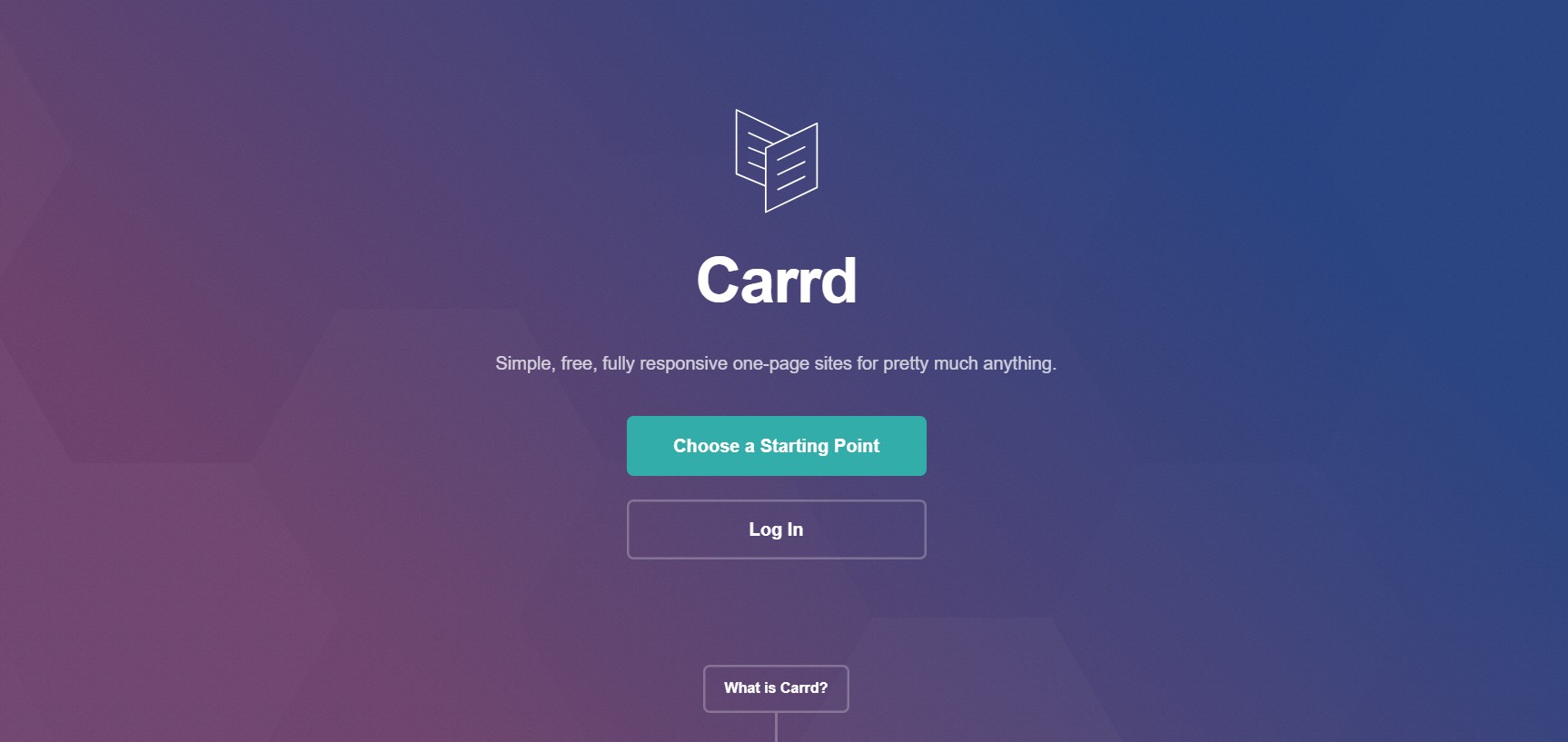
- Carrd: Built specifically for single-page sites. If all you need right now is one landing page (a portfolio, a lead magnet, an event signup), Carrd does that one job cleanly and its free tier is enough to launch something today.
Paid picks
- WordPress.org (self-hosted) + Elementor: This is the setup worth graduating to once you’re serious. You own your site outright, no platform can shut you down or change the rules on you, and Elementor’s drag-and-drop builder means you don’t need to touch code to make it look professional. You’ll pay for hosting and a domain separately, and Elementor itself has a free version, though the Pro tier (roughly $59/year at the entry level, going up from there for more sites) unlocks the theme builder and more design flexibility.
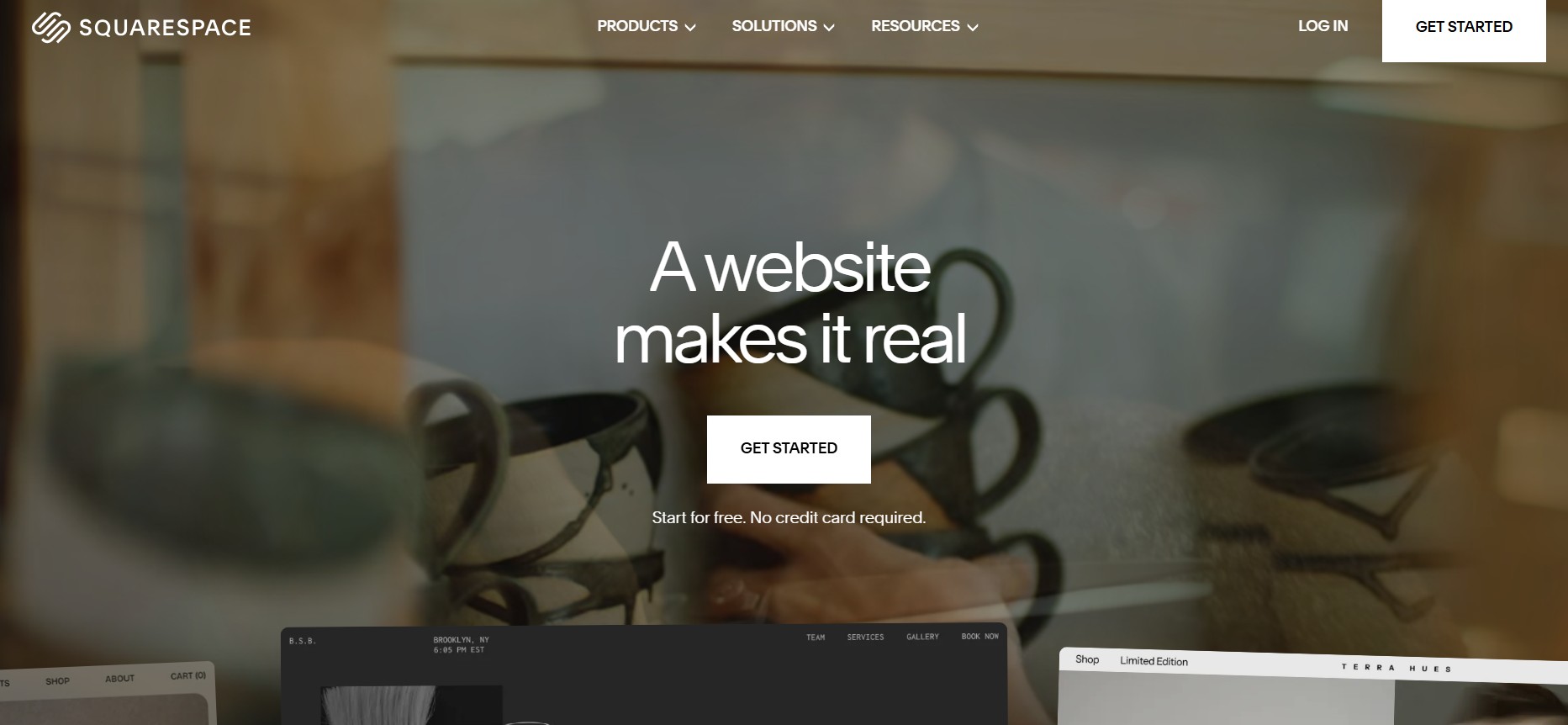
- Wix or Squarespace: The “just get it done” option for non-technical beginners who don’t want to think about hosting, plugins, or updates. Wix runs from about $17/month up through $159/month depending on the plan, with the $29/month Core plan being the practical floor if you ever want to sell anything. Squarespace starts around $16/month and tops out near $99/month, with no permanent free plan, just a 14-day trial. Both are genuinely easier than WordPress for someone who’s never built a site before. What you give up is flexibility. You’re renting space on their platform, not owning your own setup.
One thing beginners forget to budget for: domain and hosting are usually separate line items from whatever site builder you pick, unless you’re on an all-in-one platform like Wix or Squarespace. A domain runs roughly $10 to $20 a year, and basic hosting for a small WordPress site is usually somewhere in the $5 to $15 a month range depending on the host. That’s not a huge number, but it’s real, and it’s easy to forget when you’re comparing “free” builder tiers to each other and not accounting for what sits underneath them.
There’s also a question worth asking yourself honestly before you pick a lane here: how technical do you actually want to get? Self-hosted WordPress gives you the most control and the lowest long-term cost, but it also means you’re the one responsible for updates, backups, and the occasional plugin conflict breaking something at an inconvenient time. Wix and Squarespace trade some of that control for peace of mind. Neither answer is wrong. It just depends on whether you’d rather spend your time learning a bit of web maintenance or spend it on the marketing itself.
If you’re picking just one: Start with Carrd if all you need is a single page today. If you’re building something you’ll grow for years, go straight to self-hosted WordPress with Elementor. The learning curve is a little steeper on day one, but you won’t hit a ceiling later, and you won’t be locked into a platform that can change its pricing or rules on you down the line.
SEO Tools
SEO tools matter earlier than most beginners think, and not because you need to obsess over rankings before you’ve published anything. It’s because keyword research shapes what you write in the first place. Guessing at topics and hoping people search for them is how you end up with a blog nobody finds.
Here’s a distinction worth understanding before picking anything in this category: some of these tools are about research (finding out what to write about before you write it), and some are about diagnostics (checking what’s already happening on your site). You need both eventually, but research tools matter first, since there’s no point diagnosing a site that doesn’t have content worth ranking yet.
Free picks
- Google Search Console: This is non-negotiable and it’s free, so there’s no excuse to skip it. It shows you exactly which search queries are already bringing people to your site, how often your pages show up in results, your click-through rate, and any indexing problems Google is running into. Most beginners don’t realize how much diagnostic information is sitting here for free.
- Google Keyword Planner: Technically built for people running Google Ads, but you can access the keyword data without actually spending a cent on ads. The setup workaround trips a lot of people up (you have to create a campaign, then pause it before it spends anything), so it’s worth looking up a quick guide the first time you do it.
- Ubersuggest (free tier): Neil Patel’s tool, and the free version gives you a handful of keyword lookups per day, usually somewhere around 3 to 5 depending on current limits. Not enough for daily heavy use, but enough to sanity check a topic idea before you commit to writing 2,000 words about it.
Paid picks
- Ahrefs or Semrush: These are the two names that dominate serious SEO work, and honestly the price jump from free tools is significant, so don’t reach for either on day one. Ahrefs’ entry-level plans run from around $29/month for a limited Starter tier up to $129/month for Lite, with Semrush’s Pro plan sitting around $140/month. Pick one, not both, once you’re managing multiple pieces of content or client sites and actually need competitor backlink data and deeper keyword volume numbers than the free tools give you.
- Ubersuggest (paid) or Mangools: If Ahrefs and Semrush feel like overkill (and for a beginner, they usually are), these sit in a much friendlier price range. Ubersuggest’s paid plans start around $12 to $29/month depending on the tier, and it even offers a one-time lifetime purchase option, which is unusual in this space. Mangools, built around its KWFinder tool, starts around $29/month and is genuinely one of the more beginner-friendly interfaces in SEO software, with none of the overwhelming dashboard clutter Ahrefs and Semrush are known for.
Worth saying plainly: Ahrefs and Semrush are excellent tools, and the SEO professionals who swear by them aren’t wrong to. But they’re built for people managing dozens of pages, multiple client sites, or serious link-building campaigns. A beginner with three blog posts published doesn’t need a $130-a-month subscription to tell them what’s already obvious, that they need more content and more links. Save that money for the writing itself, or for a cheaper tool like Mangools that still gives you real keyword difficulty scores without the enterprise price tag.
If you’re picking just one: Google Search Console, full stop, because it’s free and shows you real data about your actual site. Add Ubersuggest’s free tier for topic research before you write anything. Don’t touch Ahrefs or Semrush until you’re managing enough content that the free tools start feeling genuinely limiting.
Content & Writing Tools
There’s a real difference between a tool that helps you draft something and a tool that catches your mistakes after you’ve drafted it. Beginners need both, and mixing them up is a common early mistake. Using an AI tool to write the whole thing and calling it done is a different mistake, one that’s gotten a lot more common in the last couple of years, and it’s worth addressing directly since it’s probably the single biggest trap in this entire category.
Free picks
- Grammarly (free tier): Catches spelling, basic grammar, and punctuation issues as you type, across most places you write online (Gmail, Google Docs, your browser generally). The free version is genuinely useful, not a stripped-down tease.
- Hemingway Editor (free web version): Where Grammarly checks correctness, Hemingway checks readability. It flags passive voice, overly complex sentences, and adverb overuse, the stuff that makes writing feel bloated even when it’s technically grammatically fine. Run your draft through both and you’ll catch two different categories of problems.
- ChatGPT or Claude (free tiers): Useful for brainstorming angles, building an outline, or getting unstuck on a first sentence. Worth being honest here though: these are thinking partners, not a replacement for you actually knowing your subject and writing in your own voice. Content that reads like it came straight out of a chatbot with zero editing tends to fall flat, and readers can usually tell.
Paid picks
- Grammarly Pro (formerly Premium): Roughly $12/month if you commit to annual billing, or $30/month paid monthly, which is a big enough gap that annual billing is worth it if you know you’ll use it consistently. Pro adds tone detection, full-sentence rewrite suggestions, and a plagiarism checker on top of the free version’s basic corrections.
- Surfer SEO or Clearscope: These are content optimization tools, not writing tools exactly. They analyze what’s already ranking for a given keyword and tell you what topics, subheadings, and terms your draft is missing to compete. This is a “once you’re publishing regularly” purchase, not a day-one one. Pricing for both sits in the $99+/month range depending on the plan, so hold off until you’re consistently producing content and actually need to match search intent at scale rather than writing on instinct.
Worth being blunt about something here. A lot of content published in the last couple of years reads like it came out of a machine because, well, it did, and barely anyone edited it afterward. Readers notice. Search engines are also getting better at recognizing it, and generic AI-generated content tends to underperform genuinely useful, specific writing in the long run. The tools in this section work best as support for your own knowledge and voice, not as a replacement for either. If you wouldn’t say a sentence out loud to a friend, it probably shouldn’t be in your published draft either, no matter which tool produced it.
If you’re picking just one: Grammarly’s free tier plus Hemingway’s free web app covers 90% of what a beginner actually needs. Skip Surfer or Clearscope entirely until you have a real publishing cadence going.
Graphic Design & Visual Content Tools
Visuals aren’t optional anymore, even for a beginner. A blog post with no images looks unfinished, and a social post with no visual almost never gets seen at all given how most platforms prioritize content in feeds. And no, you don’t need design training to produce something that looks professional. That’s genuinely the entire point of the tools in this category, they exist to close that gap.
Free picks
- Canva (free tier): The obvious starting point, and it genuinely covers a lot of ground: social graphics, simple presentations, basic flyers. The catch is template and asset limits. A meaningful chunk of Canva’s library is locked behind Pro, so you’ll bump into “upgrade to use this” prompts pretty regularly once you start exploring.
- Unsplash and Pexels: Both give you free, high-quality stock photography with no attribution required in most cases (always double check the specific license on an image before using it commercially). Between the two you can cover most blog header and social image needs without ever paying for stock photos.
Paid picks
- Canva Pro: Runs around $12 to $15/month for an individual, or roughly $120/year if you pay annually. What you’re actually paying for: unlimited access to Canva’s full premium template and stock library, the background remover tool (genuinely useful and otherwise something you’d pay per-image for elsewhere), a brand kit to keep your colors and fonts consistent, and one-click resizing across formats, so a single design can become an Instagram post, a Pinterest pin, and a Facebook cover in seconds.
- Adobe Express: A lighter alternative to full Photoshop, useful if you find yourself outgrowing Canva’s more template-driven feel and wanting a bit more creative control without committing to the full Adobe Creative Cloud subscription.
Worth a quick side note on stock photography specifically, since it’s easy to overlook. The temptation as a beginner is to grab whatever generic stock photo shows up first, the same handshake photo or laptop-on-a-desk shot every third small business website seems to use. It’s fine as a placeholder, but it does nothing to make your brand feel distinct. If you have even a phone camera and a few minutes, real photos of your actual product, workspace, or team usually beat stock images for building trust, even if they’re not perfectly polished.
If you’re picking just one: Start with Canva’s free tier. Upgrade to Pro the moment you notice yourself hitting the same “this asset requires Pro” wall more than a couple of times a week, since at that point the subscription pays for itself in saved friction.
Social Media Management Tools
Every beginner hits the same wall around week two of manual posting: logging into four different apps every single day to post the same content isn’t sustainable, and you’ll start missing days. Scheduling tools exist to fix exactly that problem, batching your content creation into one sitting and then letting it publish automatically over the following days or weeks.
Free picks
- Meta Business Suite: Free, native to Facebook and Instagram, and lets you schedule posts across both without a third-party tool. The obvious limitation is that it only covers Meta’s platforms, so if you’re also on LinkedIn, X, or TikTok, you’re back to manual posting there.
- Buffer (free tier): Covers up to 3 connected channels with 10 scheduled posts per channel at a time. Not enough for heavy daily posting across many platforms, but a solid way to get a feel for scheduling without paying anything.
Paid picks
- Buffer (paid): Essentials runs around $5 to $6 per channel per month, and Team runs around $10 to $12 per channel per month, which adds team collaboration features. Because it’s priced per channel rather than a flat team fee, it scales in a fairly predictable way as you add platforms.
- Hootsuite: A heavier, more feature-dense alternative, generally positioned toward small teams and agencies managing more channels and needing deeper analytics than Buffer’s core plans offer.
- Later: Worth a specific mention if your focus is visual-first platforms like Instagram or Pinterest. Its visual content calendar makes planning a cohesive feed noticeably easier than a list-based scheduler.
One thing worth flagging honestly: scheduling tools solve the publishing problem, not the content problem. Nobody’s engagement improved just because they started using Buffer. What actually moves the needle is what you’re posting, and a scheduler just removes the friction of getting it out the door consistently. Don’t mistake buying a scheduling tool for having a social strategy. They’re related but not the same thing.
It’s also worth knowing that platforms don’t always love third-party schedulers equally. Native tools like Meta Business Suite tend to get treated the same as posting manually, since Meta built it themselves. Third-party tools posting through official APIs, which is how Buffer, Hootsuite, and Later all operate, are generally fine too, but every so often a platform tweaks its algorithm in a way that seems to favor content posted natively over content pushed through an API. Nothing to panic about, just something worth keeping an eye on if you notice a sudden dip in reach after switching tools.
If you’re picking just one: Meta Business Suite covers you for free if Facebook and Instagram are your main channels. The moment you’re managing three or more platforms, Buffer’s Essentials plan is the natural next step, since the per-channel pricing keeps costs proportional to what you’re actually using.
Email Marketing Tools
Email feels old-fashioned to a lot of beginners who came up on social media, but here’s the argument for it that actually matters: you own your email list. Instagram can change its algorithm overnight and tank your reach. Nobody can do that to your inbox list. That ownership is worth the extra setup effort.
Free picks
- Mailchimp (free tier): As of this writing the free plan covers up to 250 contacts and 500 emails a month, which has been trimmed down over the years from more generous earlier limits, so don’t expect much runway before you outgrow it.
- MailerLite (free tier): Currently covers up to 250 subscribers and 2,500 emails a month with 2 user seats. Positioned as the leaner, more beginner-friendly alternative to Mailchimp, with a cleaner interface that a lot of first-time users find less overwhelming.
Paid picks
- Mailchimp (paid): Essentials starts around $13/month for 500 contacts, but if you actually want multi-step automation (welcome sequences, abandoned cart flows, that kind of thing), you need Standard, which starts around $20/month. That’s an important distinction Mailchimp doesn’t make obvious upfront.
- Kit (formerly ConvertKit): Worth picking specifically if you’re a creator or planning to sell digital products, courses, or paid newsletters, since it’s built around monetization in a way general-purpose tools like Mailchimp aren’t. The free Newsletter plan covers up to 10,000 subscribers, which is genuinely generous, though the jump to the paid Creator plan (roughly $33 to $39/month depending on current pricing) happens the moment you need more than one automation.
One thing that matters more than any feature comparison once you’re paying for email: deliverability. A cheaper tool that actually lands in inboxes beats an expensive one that gets flagged as spam. Keep an eye on your open rates after a few sends, and if they’re consistently low, that’s worth investigating before you assume your subject lines are the problem.
It’s also worth setting expectations early on list size. A beginner’s first instinct is often to chase subscriber numbers, but a list of 200 people who actually open your emails is worth more than a list of 2,000 who don’t. Both Mailchimp and MailerLite count every contact toward your billing tier, even the ones who never open a single email, so a bloated, unengaged list doesn’t just look bad, it costs you real money once you’re on a paid plan. Clean your list occasionally. Remove people who haven’t opened anything in months. It keeps your costs down and your open rate numbers honest.
If you’re picking just one: MailerLite’s free tier if you’re starting completely from scratch. Kit if you already know you’re building toward selling something directly to your list.
Analytics & Tracking Tools
You can’t improve what you’re not measuring, and yes, that’s a cliché at this point, but it’s a cliché because it’s true. The bigger issue for beginners isn’t whether to track things, it’s that the tracking tools themselves have a real learning curve. Nobody opens GA4 for the first time and immediately understands what they’re looking at, and that’s worth knowing going in so you don’t assume something’s broken when it’s really just unfamiliar.
Free picks
- Google Analytics 4 (GA4): Free, and it’s the standard, but worth being honest that GA4 confuses a lot of people who are new to it, especially anyone who learned the older Universal Analytics interface before Google forced the switch. The event-based data model is a different way of thinking about traffic than the old pageview-based system, and it takes a few sessions of poking around before it clicks.
- Google Tag Manager: Pairs with GA4 and lets you manage tracking codes and events without editing your site’s code directly every time you want to track a new button click or form submission. Worth setting up early even if you don’t fully understand every feature yet, since it saves you from having to touch your site’s code later.
Paid picks
- Hotjar or Microsoft Clarity: Both show you heatmaps and session recordings, essentially watching how real visitors move through and interact with your pages. The genuinely useful contrast point here: Microsoft Clarity is completely free with no session caps, while Hotjar’s free tier caps you at 35 sessions a day and its paid plans start around $32 to $49/month for more volume and added features like surveys and feedback widgets. For a beginner, Clarity’s free unlimited tier is honestly hard to argue against unless you specifically need Hotjar’s survey tools too.
If you’re picking just one: GA4 plus Google Tag Manager, both free, cover the core of what a beginner needs to know: who’s visiting, where they’re coming from, and what they’re doing once they land. Add Microsoft Clarity on top since it costs nothing and shows you things GA4’s numbers alone won’t, like exactly where on a page people are getting stuck or clicking things that don’t do anything.
A quick reality check on this whole category: don’t let dashboard-watching become a substitute for actually doing the work. Checking your analytics five times a day in the first week won’t change your numbers. Publishing more, fixing the things that clearly aren’t working, and checking in weekly is a far better use of your time than refreshing GA4 hoping to see a spike.
LinkedIn Outreach and Prospecting Tools
Worth a quick mention here since it’s a category a lot of beginners eventually run into, especially anyone doing B2B work or agency-style outreach. LinkedIn automation and outreach platforms (tools that handle connection requests, follow-up sequences, and profile visits at scale) are their own deep rabbit hole with a lot of moving parts, pricing tiers, and platform risk considerations that go well beyond what fits in a beginner’s tools roundup.
If that’s a direction you’re heading, it’s worth reading a dedicated comparison of the specific platforms in that space rather than trying to cram a full breakdown in here. This is more of a bridge than a full category writeup, mostly because outreach automation is a more advanced play than most of what’s on this list, and it comes with its own set of risks around account safety that deserve their own explanation.
The short version, though, since it’s worth at least framing before pointing elsewhere: these tools automate the parts of prospecting that are otherwise painfully manual, sending connection requests at scale, following up on a schedule, personalizing messages based on a prospect’s profile data. They can genuinely save hours a week once your outreach strategy is dialed in. But running one before you actually know who you’re targeting and what message resonates just means you’re automating a bad approach and doing it faster, which usually just gets your account flagged or your messages ignored at a larger scale than before. Nail the message and the targeting manually first, on a small batch of prospects, and only then consider automating what’s already working.
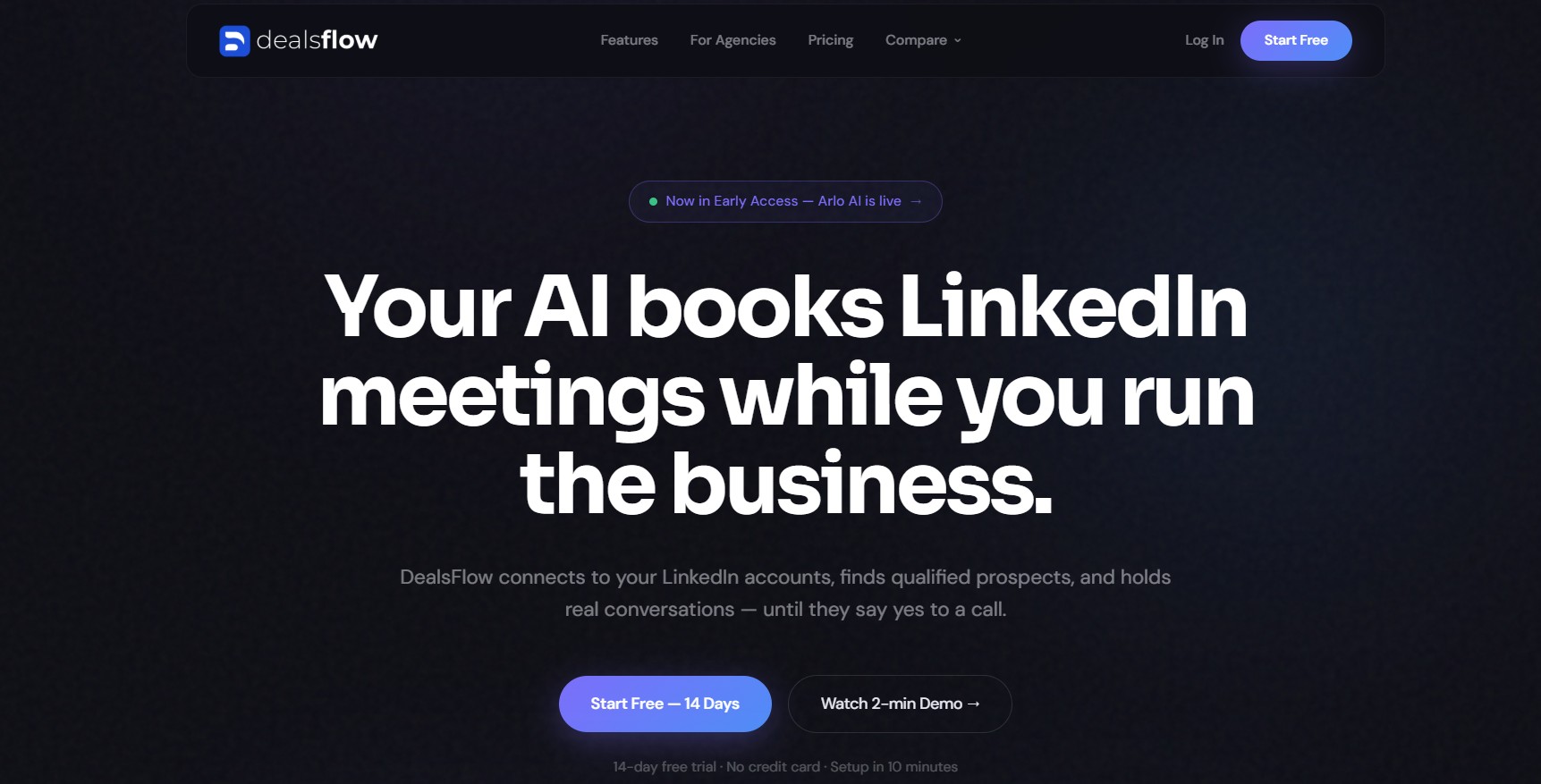
One name worth knowing if you do end up going down this road is DealsFlow, a cloud-based LinkedIn outreach platform built around AI-driven conversation handling rather than just sending sequences and hoping for replies. Pricing starts at $49/month (annual) for the Starter plan (one LinkedIn account), $99/month (annual) for Professional (up to three accounts), and $249/month (annual) for Enterprise (10 or more accounts, built for agencies managing outreach across multiple clients). It comes with a 14-day free trial and no credit card required to start. Still not a day-one tool for a true beginner, but it’s a reasonable one to have on your radar once you’ve validated your messaging manually and are ready to scale it.
Paid Advertising Tools
Here’s an opinion worth stating plainly: most beginners should not be running paid ads yet. Not because ads don’t work, they clearly do, but because throwing money at traffic before your site, content, and tracking are actually in place means you’re paying to send people to something that isn’t ready to convert them. Get the organic foundations sorted first. A landing page with no clear call to action, no tracking set up, and copy nobody’s tested yet is a losing proposition no matter how well-targeted the ad is. Fix that first, then ads amplify something that already works instead of exposing something that doesn’t.
Free-to-start (platform-native, no tool cost beyond ad spend)
- Google Ads: No subscription fee, you’re only paying for the ads you run. The platform itself is free to use.
- Meta Ads Manager: Same deal, free to access, you pay for the ad spend directly.
Paid tools worth it later
- A creative or reporting layer like AdEspresso, or Canva Pro’s built-in ad templates: Worth adding once you’re running multiple campaigns at once and need to produce ad creative faster than manually designing each one from scratch, or once your reporting needs outgrow what the native ad platforms show you by default.
If you’re picking just one: Neither, honestly, not yet. Start with the platform-native tools when you’re ready for ads, and hold off on any paid management or creative layer until you’ve actually run enough campaigns to know what’s slowing you down. And when you do start, budget small. A $10 to $20 a day test budget teaches you far more about what messaging and targeting actually work than a single $500 campaign you’re too nervous to touch once it’s live.
Automation & Workflow Tools
There’s a specific moment every beginner hits where they realize they’re manually copying data from one tool into another, and it clicks that this should just… happen automatically. That’s usually the trigger for looking into automation tools. Maybe it’s manually adding every new email signup into a spreadsheet, or copying new leads from a contact form into your CRM by hand. Small, repetitive, and exactly the kind of thing automation tools were built to eliminate.
Free picks
- Zapier (free tier): Gives you 100 tasks a month and limits you to simple two-step automations (one trigger, one action). Enough to test whether automation actually solves a problem you have, not enough for real ongoing use.
- Make (formerly Integromat): A solid free-tier alternative to Zapier, generally considered more powerful for complex multi-step workflows once you get past its slightly steeper learning curve.
Paid picks
- Zapier (paid): Starter plans run around $20 to $30/month for roughly 750 tasks, moving up to around $49/month for 2,000 tasks on the Professional tier. It becomes worth paying for once you have multiple automations running that genuinely save you time each week, not before.
If you’re picking just one: Stick with Zapier’s free tier until you find yourself specifically needing more than two-step workflows or hitting the 100-task ceiling regularly. Most beginners don’t need to pay for automation in year one. Automation is a time-saving tool, not a growth tool. It won’t get you more customers. It just gets back the hours you were spending on busywork, which is genuinely valuable, just not the same thing as marketing itself.
How to Build a Starter Stack Without Overspending
Here’s where this stops being a list and starts being an actual plan. Picture month one, and picture it using nothing but free tools: a Carrd landing page or a WordPress.com site to start, Google Search Console for SEO visibility, Grammarly and Hemingway’s free versions for writing, Canva’s free tier for visuals, Meta Business Suite for social scheduling, MailerLite’s free plan for your first email list, and GA4 plus Microsoft Clarity for tracking what’s actually happening. That’s a genuinely complete stack, and it costs zero dollars.
If it helps to see it broken into an actual sequence rather than one big pile of tools, here’s roughly how the first month tends to go for someone starting from nothing. Week one is the website: get a Carrd page or WordPress.com site live, even if it’s not perfect, because a live imperfect page beats a polished page still sitting in draft. Week two is content and design: write your first couple of pieces using Grammarly and Hemingway, and build the visuals to go with them in Canva. Week three is distribution: set up Meta Business Suite or Buffer’s free tier and start posting consistently, and get your MailerLite signup form live so you’re capturing emails from day one instead of scrambling to add one later. Week four is measurement: install GA4, Search Console, and Microsoft Clarity, and actually sit down and look at what happened over the previous three weeks. Nothing about that sequence requires a paid tool, and by the end of it you’ll have a much clearer sense of where the real friction in your specific workflow actually is, which is exactly the information you need before spending a single dollar on an upgrade.
So when do you start paying? Not on a calendar date, and not based on a fixed budget number you picked out of thin air. The trigger points are things like: your first paying client, consistent traffic that’s outgrowing a free tool’s limits, or an email list that’s crossed the free subscriber cap. Those are real signals that a tool is actively holding you back, which is a very different situation from paying for something because it seemed like the professional thing to do.
Here’s the more common mistake, and it’s worth saying directly: beginners are far more likely to overspend by stacking too many paid tools too early than they are to hurt themselves by staying cheap too long. Nobody has ever failed at digital marketing because their landing page builder was free. Plenty of people have burned through a few hundred dollars a month on tools they never fully learned how to use, while their actual content or ad spend stayed thin because the tool budget ate the room that should’ve gone there.
Play it out with real numbers for a second. Stack the “recommended” paid tier in every single category above (Ahrefs, Semrush, Surfer, Canva Pro, Buffer’s Team plan, Mailchimp Standard, Hotjar, Zapier Professional) and you’re easily past $500 a month before you’ve published a single piece of content. Compare that to a beginner running the exact free stack described above, spending $0, and publishing consistently for three months while they actually learn what moves the needle for their specific audience. The second person is almost always further ahead a year later, not because the free tools are secretly better, but because they spent their early months learning instead of configuring software.
That’s not to say paid tools are a trap. Once you know exactly what a specific limitation is costing you (an SEO tool that would’ve caught a ranking opportunity, an email platform that would’ve let you run an automation you know would convert), paying for the upgrade is an easy call. The mistake isn’t paying for tools. It’s paying for them speculatively, before you’ve actually felt the pain the upgrade solves.
All the Tools in One Place
Everything above, laid out together for a quick scan or a bookmark. Prices reflect entry-level tiers as of this writing, always confirm on the vendor’s own pricing page before buying.
| Category | Tool | Free Tier | Paid Starting Price |
|---|---|---|---|
| Website & Landing Pages | WordPress.com | Yes (limited, subdomain only) | Varies by plan |
| Website & Landing Pages | Carrd | Yes | Low-cost paid tier available |
| Website & Landing Pages | WordPress.org + Elementor | Free core plugin | Elementor Pro from ~$59/year |
| Website & Landing Pages | Wix | Yes (limited) | From ~$17/month |
| Website & Landing Pages | Squarespace | No (14-day trial only) | From ~$16/month |
| SEO | Google Search Console | Yes, fully free | N/A |
| SEO | Google Keyword Planner | Yes, fully free | N/A |
| SEO | Ubersuggest | Yes (limited daily lookups) | From ~$12/month |
| SEO | Ahrefs | No | From ~$29/month (Starter) |
| SEO | Semrush | Limited free plan | From ~$140/month (Pro) |
| SEO | Mangools | No (10-day trial) | From ~$29/month |
| Content & Writing | Grammarly | Yes | Pro from ~$12/month (annual) |
| Content & Writing | Hemingway Editor | Yes (web version) | N/A |
| Content & Writing | ChatGPT / Claude | Yes | Paid tiers available |
| Content & Writing | Surfer SEO / Clearscope | No | From ~$99/month |
| Design & Visual | Canva | Yes | Pro from ~$12-15/month |
| Design & Visual | Unsplash / Pexels | Yes, fully free | N/A |
| Design & Visual | Adobe Express | Yes (limited) | Paid tiers available |
| Social Media | Meta Business Suite | Yes, fully free | N/A |
| Social Media | Buffer | Yes (3 channels) | From ~$5-6/channel/month |
| Social Media | Hootsuite | No | Paid tiers available |
| Social Media | Later | Yes (limited) | Paid tiers available |
| Email Marketing | Mailchimp | Yes (250 contacts) | From ~$13/month |
| Email Marketing | MailerLite | Yes (250 subscribers) | From ~$12/month |
| Email Marketing | Kit (ConvertKit) | Yes (up to 10,000 subscribers) | From ~$33-39/month |
| Analytics & Tracking | Google Analytics 4 | Yes, fully free | N/A |
| Analytics & Tracking | Google Tag Manager | Yes, fully free | N/A |
| Analytics & Tracking | Microsoft Clarity | Yes, fully free, unlimited | N/A |
| Analytics & Tracking | Hotjar | Yes (35 sessions/day) | From ~$32-49/month |
| LinkedIn Outreach | DealsFlow | No (14-day trial) | From $49/month (annual) |
| Paid Advertising | Google Ads | Free platform, pay for ad spend | N/A |
| Paid Advertising | Meta Ads Manager | Free platform, pay for ad spend | N/A |
| Automation & Workflow | Zapier | Yes (100 tasks/month) | From ~$20-30/month |
| Automation & Workflow | Make (Integromat) | Yes (limited) | Paid tiers available |
Final Thoughts
There’s a version of this article that just dumps fifty tool names on you and calls it comprehensive. That version isn’t actually helpful, it just moves the overwhelm from “which tool” to “which forty-nine tools should I ignore.” What you’ve got instead is a shortlist, organized by what each tool is actually for, with a clear starting point in every category.
The philosophy underneath all of it is simple: start free, and upgrade only when something specific is actively getting in your way. Nobody needs the full paid stack in week one, and honestly, most people never need all of it at once even once they’re established. Pick one category from this list, set it up this week, and use it before you even think about adding a second tool. That’s how a starter stack actually gets built, not by installing everything at once and hoping it all clicks.
And if you take away nothing else from any of this, take away the one thing that actually separates people who build something real from people who stay stuck comparing tools forever: the tools don’t do the work. They remove friction from work you’re already willing to do. Pick something from this list, open it today, and get moving.
Frequently Asked Questions
What’s the best free digital marketing tool for beginners overall?
Google Search Console is hard to beat, mostly because it’s free, it’s showing you real data about your actual site rather than generic industry benchmarks, and there’s genuinely no reason not to set it up on day one regardless of what else you’re using.
Do I need to pay for tools when I’m just starting out?
No. A genuinely complete starter stack, covering a website, SEO basics, content editing, design, social scheduling, email, and analytics, can be built entirely from free tiers. Paying comes later, once a specific free tier’s limit is actually holding you back.
What’s the difference between Google Analytics and Google Search Console?
Search Console shows you how your site performs specifically in Google Search results (what people searched to find you, your click-through rate, indexing issues). GA4 shows you what happens after someone lands on your site (how long they stay, what pages they visit, whether they convert). They answer different questions and both are worth setting up.
Which tool should a beginner learn first: SEO, social media, or email?
Honestly, start wherever your actual audience already is. If you’re writing long-form content, SEO tools matter early because they shape what you write. If your growth plan leans on social, learn scheduling and content creation first. Email tends to matter most once you already have some traffic or following to convert into a list.
Can I run digital marketing with only free tools?
For a good while, yes. Everything covered in the “starter stack” section above is free. The point where free tools stop being enough is usually tied to growth, not time, so someone with fast-growing traffic might outgrow free tiers in a couple of months, while someone moving slower could stay on free tools for a year or more.
How much should a beginner budget for marketing tools per month?
There’s no universal number here, and anyone who gives you one confidently is guessing. A more useful approach: start at zero, and only add a paid tool when a specific free-tier limit is genuinely blocking you. Most beginners who follow that rule end up spending somewhere between $0 and $50 a month in their first few months, not the $300+ a month some “recommended stacks” push people toward.
Should I learn Google Analytics or hire someone to handle it for me?
Learn the basics yourself first, even if you eventually plan to hand it off. You don’t need to become an analytics expert, but understanding what your own traffic and conversion numbers mean is genuinely useful for making decisions, and it’s a lot harder to evaluate whether someone you hire is doing a good job if you’ve never looked at the data yourself.
Is it worth paying for a tool that has a good free trial instead of a permanently free plan?
Depends entirely on your timeline. A free trial is great for testing whether a tool fits your workflow before you commit money, but it’s not a substitute for a genuinely free tier if you’re not ready to pay yet. Watch renewal dates closely, since most trials convert to a paid subscription automatically unless you cancel first, and that’s exactly the kind of surprise charge that catches beginners off guard.