

Somewhere around 2 AM, after the fourth cup of chai, most people trying to build their first website end up in the same spot. Forty browser tabs open. A dozen “best website builder 2026” articles that all say roughly the same five things in a different order. And three names keep showing up no matter what: WordPress, Webflow, Squarespace. Everyone talks about them like they’re basically interchangeable, three flavors of the same ice cream. Pick whichever one has the nicer template and move on.
Nope. That’s not how this works, and honestly, most of the comparison articles out there do readers a disservice by pretending it is. These three platforms are built on different philosophies. One gives full control and hands over the responsibility that comes with it. One is built for people who think in pixels and CSS, not code. One is built for people who just want a good-looking site live by Friday. None of them is “the best CMS.” That question doesn’t even make sense once you understand what a CMS actually is.
So that’s where this is going to start. Not with a comparison table shoved in your face on line one, but with the actual definition of a CMS, explained the way it should’ve been explained the first time someone Googled it. Then the three architecture types that explain why these platforms feel so different to use. Then a proper breakdown of WordPress, Webflow, and Squarespace on their own terms, followed by the head-to-head numbers on pricing, design, SEO, ecommerce, and scale. By the end, there should be a clear answer for one specific situation: yours.
What Is a CMS, Actually?
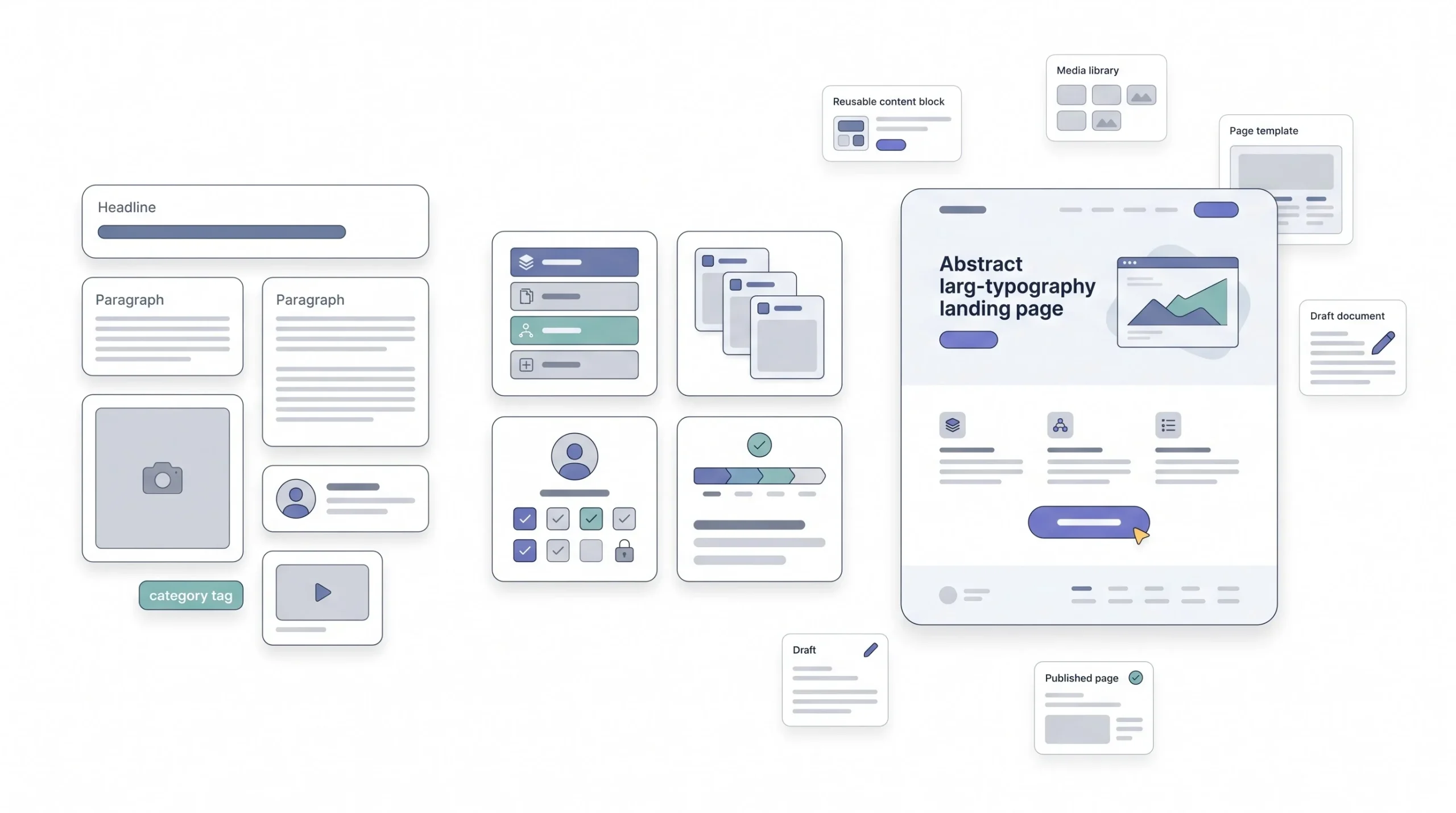
CMS stands for Content Management System. Strip away the jargon and it’s just software that lets someone add, edit, and publish content on a website without touching a single line of code.
Rewind to the early 2000s and building a website meant opening a text editor, hand-coding HTML for every single page, and uploading it to a server through FTP. Fix a typo in the footer? Edit the raw file, re-upload, hope nothing else broke. Add a new blog post? Copy an existing HTML file, rewrite the whole thing, link it manually from the homepage. One misplaced closing tag and the entire layout could fall apart.
A CMS is the layer that got built to remove all of that pain. Log in, click “new post,” type the content, hit publish. The system handles turning that content into a properly formatted web page behind the scenes. That’s the whole shift, and it’s a bigger one than it sounds like from a modern seat, because it’s the difference between “only a developer can update this website” and “anyone on the team can update this website.”
What a CMS actually does, mechanically
Talk to enough people about this and it becomes clear most beginners think a CMS is just “the dashboard.” It’s actually doing four distinct jobs at once, and understanding each one is what makes the WordPress vs Webflow vs Squarespace comparison later actually make sense.
| Function | What it means in practice |
|---|---|
| Content storage | Where the actual text, images, and pages live, usually inside a database |
| Templating | How that stored content gets dressed up and displayed using the site’s design |
| User management | Who can log in, and what they’re allowed to edit or publish |
| Publishing workflow | The path content takes from draft to review to live on the site |
Every platform in this comparison does all four of these things. What differs wildly is how much control is handed over for each one, and how much of it happens automatically in the background without asking.
CMS vs website builder vs “just code”: clearing up the confusion
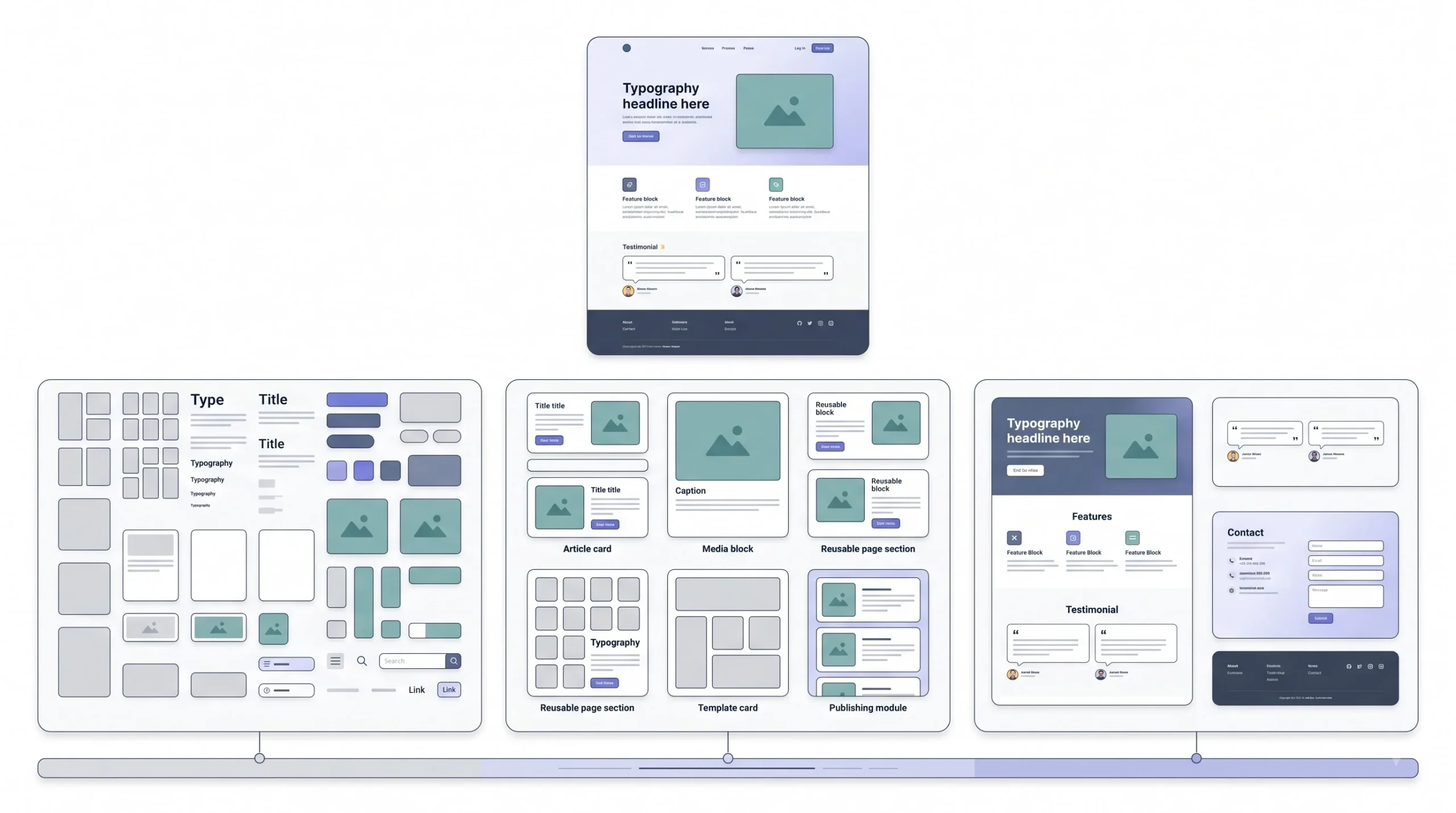
Here’s where a lot of beginners get tangled, and where most articles just skip the explanation entirely. People throw around “CMS,” “website builder,” and “coding a site from scratch” like they’re three separate categories. They’re not. They sit on one spectrum.
On one end: raw code. Full control over every pixel and every function, zero guardrails, and zero handholding. Great for someone who wants total flexibility and knows exactly what they’re doing. Rough for anyone else.
In the middle: a traditional, self-hosted CMS like WordPress. More structure than raw code, still asks for some setup and technical comfort, but removes the need to hand-build every page from scratch.
On the other end: a hosted, all-in-one website builder like Squarespace, and to a slightly different degree, Webflow. Heavily guided, opinionated, less raw control, but a much faster and gentler path from zero to a live site.
This is the actual reason WordPress, Webflow, and Squarespace feel so different the moment someone opens them. They’re not sitting at the same point on that spectrum. WordPress leans toward the “flexible but requires setup” end. Squarespace leans hard toward the “guided and bundled” end. Webflow tries to sit in an unusual middle spot: hosted and guided like Squarespace, but built to hand back the kind of design control usually only available with raw code.
Quick gut check worth keeping in mind through the rest of this piece: if someone says “I need a CMS” but what they actually mean is “I need a website live by Friday,” those are two different requests. One is about long-term control. The other is about speed. Keep that distinction in the back of the mind while reading through the deep dives below, because it’s going to matter a lot by the time the decision framework shows up.
A quick word on hosting, since it comes up constantly
Hosting is one of those words that gets thrown around before anyone actually explains it, so it’s worth pausing here for a second. A website, no matter which platform builds it, has to physically live on a server somewhere, a computer that stays connected to the internet around the clock so the site loads whenever someone visits it. Hosting is renting space on one of those servers.
Some platforms bundle this in automatically. Others make it a separate purchase entirely. This single difference is one of the biggest reasons WordPress feels like more setup work than Squarespace right out of the gate, and it’s going to come up again and again through the rest of this comparison, so it’s worth having it clear before going any further.
The Three Types of CMS Architecture
This is the part most competitor articles skip entirely, and it’s honestly the section that explains everything else in this post. WordPress, Webflow, and Squarespace aren’t just “three CMS options.” They’re three different architectural approaches to solving the same problem, and that’s exactly why they behave so differently once someone actually starts building.
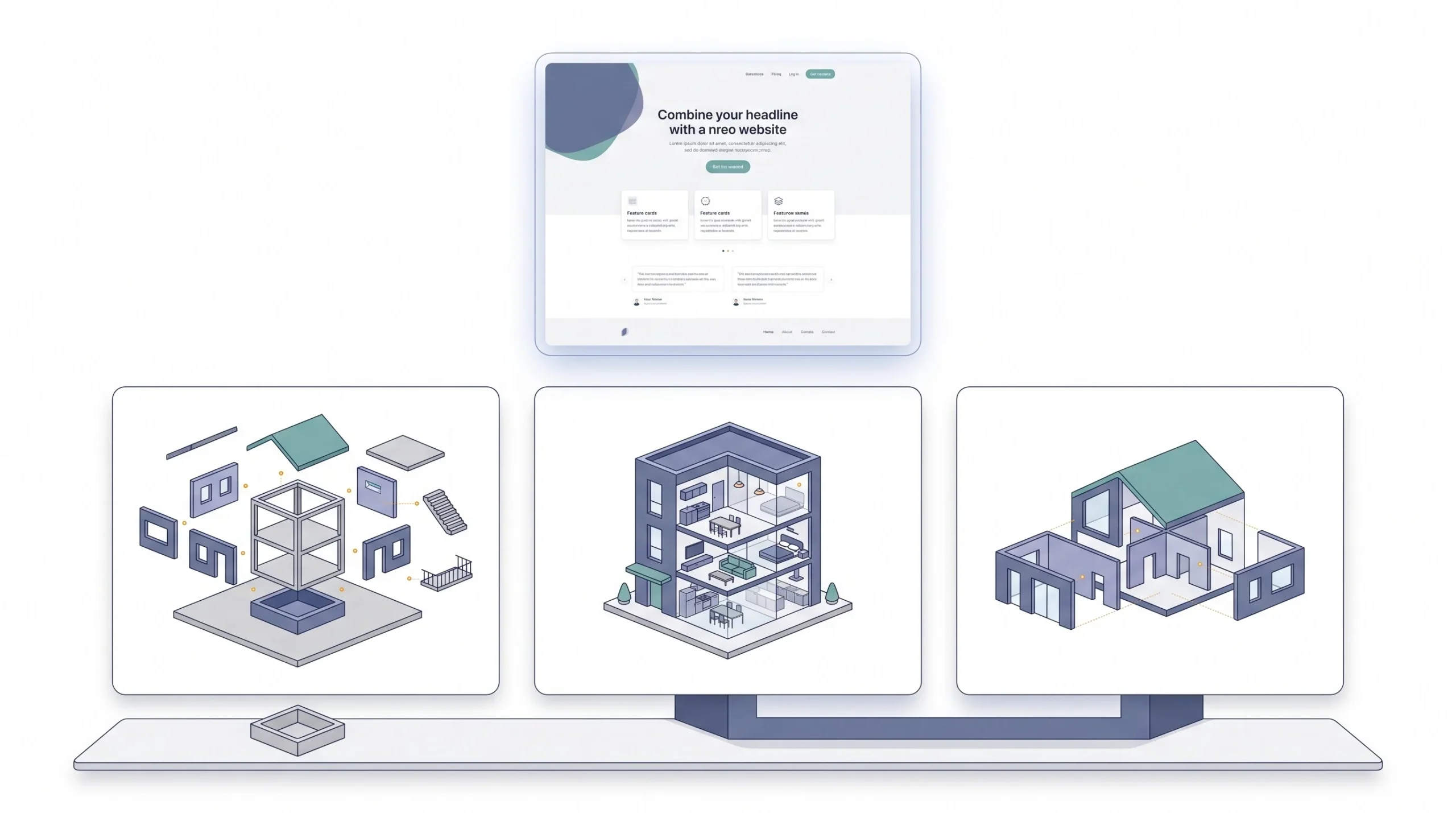
Self-hosted, open-source CMS. WordPress.org falls here. The software itself is free and open source, but hosting has to be rented separately from a provider. Full ownership of the code, full control over how the site runs, and full responsibility for keeping it updated, secure, and backed up. Think of it like buying land and building a house on it. Total freedom, but also every maintenance bill lands on the owner.
SaaS website builder. Squarespace is the clearest example. Design, hosting, security, and support all get bundled into one login and one monthly bill. Nothing to install, nothing to patch. Think of it as renting a fully furnished apartment. Move in, everything works, but knocking down a wall isn’t on the table.
Visual-first hybrid CMS. Webflow sits here. It’s hosted like Squarespace, one bill, no separate hosting purchase, but it was built for people who want the level of design control usually reserved for developers writing raw CSS. Closer to renting a house where the walls actually can come down, just with more effort involved than snapping together pre-built blocks.
| Type | Example | Owns the code? | Hosting | Mental model |
|---|---|---|---|---|
| Self-hosted, open-source | WordPress.org | Yes | Separate, choose any provider | Buying land, building the house |
| SaaS website builder | Squarespace | No | Bundled into the plan | Renting a furnished apartment |
| Visual-first hybrid | Webflow | Partial | Bundled into the plan | Renting a house, but the walls can move |
Once this framework clicks, the rest of the comparison stops feeling random. WordPress isn’t “harder” than Squarespace for no reason. It’s harder because it’s handing over more ownership. Webflow isn’t “confusing” compared to Squarespace by accident. It’s asking for more design literacy because it’s giving back more design control. None of this is a flaw in any one platform. It’s just what each architecture trades off for what it delivers.
WordPress Deep Dive
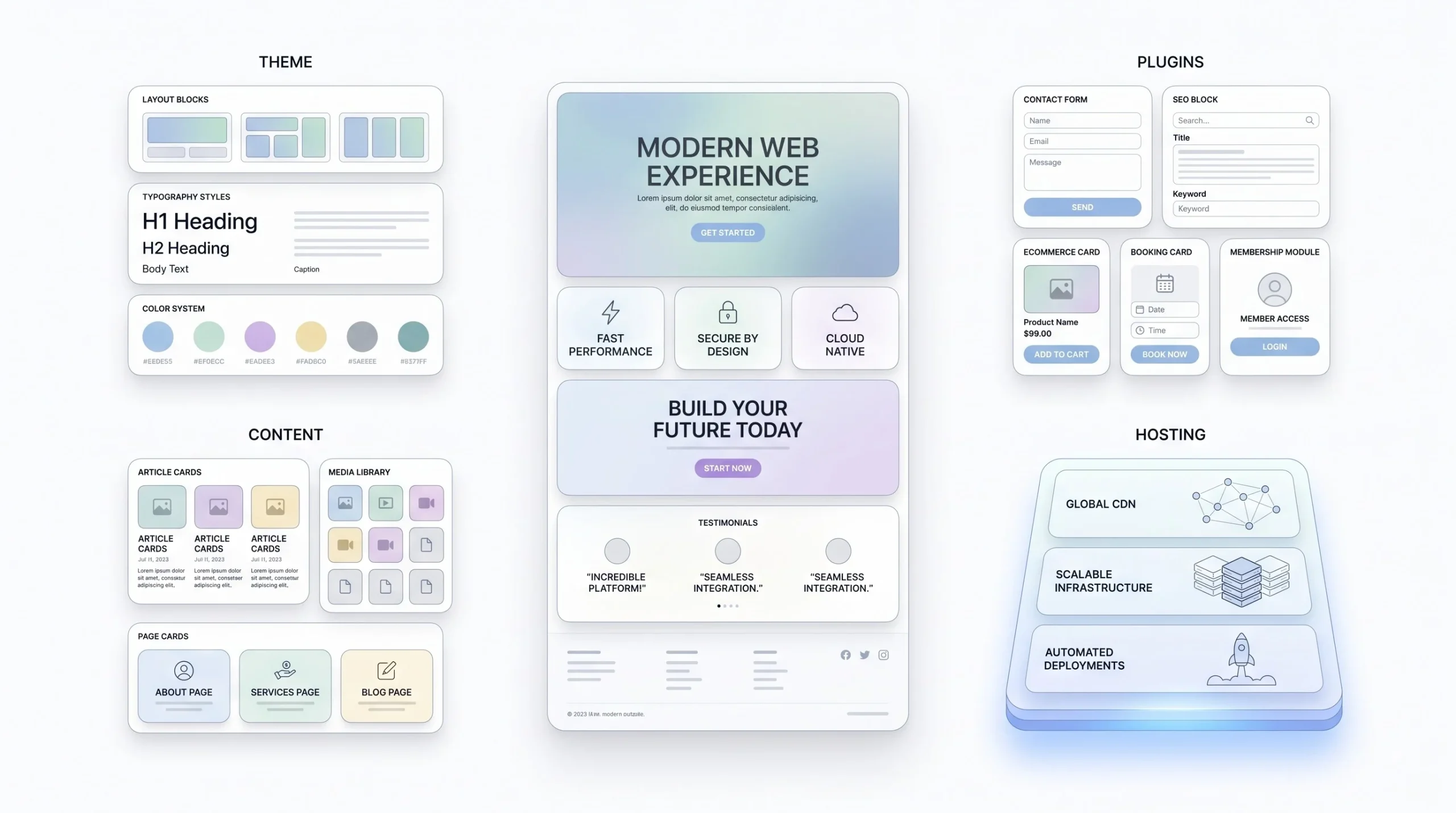
First thing to clear up, because it trips up almost everyone at the start: WordPress.org and WordPress.com are not the same product, and the confusion between them causes real problems down the line. WordPress.org is the free, open-source software that gets installed on hosting bought separately, the version this whole comparison is talking about. WordPress.com is a hosted service built on that same software but with its own separate pricing, plans, and restrictions, closer in spirit to Squarespace than to the self-hosted version most agencies and serious businesses actually use. When people say “build it in WordPress” in a professional context, they almost always mean WordPress.org. Worth locking that down before going any further, because plenty of beginners sign up for the wrong one and get confused about why features they read about aren’t there.
How it actually works
The self-hosted model runs on a few core pieces working together. A theme controls the overall design and layout. Plugins add functionality, everything from contact forms to SEO tools to full ecommerce, through WooCommerce. The dashboard is where content actually gets added and edited. And hosting is a completely separate purchase, bought from a provider like Bluehost, SiteGround, Hostinger, or a managed WordPress host like Kinsta or WP Engine.
That separation between the software and the hosting is the whole thing that makes WordPress both powerful and, honestly, a bit more work than the alternatives. Nobody’s handing over a bundled package here. It’s assembled.
Strengths
The plugin ecosystem is the single biggest reason WordPress still dominates the way it does. The official WordPress.org directory alone lists over 60,000 free plugins, and once premium marketplaces like CodeCanyon and independent developers get factored in, the total ecosystem climbs well past that. That means almost any functionality a site could ever need, booking systems, membership areas, advanced SEO controls, multilingual support, already exists as a plugin. No need to build it from scratch.
Ownership and portability matter more than people realize until they need them. Since the software and hosting are separate, moving to a different host is possible at any time, without losing the site or starting over. Nobody’s locked into one company’s ecosystem.
SEO flexibility is another real strength, and it’s not a small one. Full control over technical SEO sits available here in a way the other two platforms simply don’t match: granular schema markup, detailed sitemap control, deep site speed optimization, all of it accessible if someone’s willing to configure it.
Cost floor is genuinely low for someone comfortable handling their own setup. Shared hosting alone can run as little as $3 to $10 a month for a basic blog or small site, before adding a theme or premium plugins.
Weaknesses
The maintenance burden is real, and it’s the part most beginners underestimate before committing. Core software updates, plugin updates, security patches, none of it happens automatically unless a managed hosting plan is specifically paying for that. Skip updates for too long and the site becomes a security risk.
Design isn’t handed over on a plate. It requires either picking and customizing a theme, using a page builder plugin like Elementor or Divi, or bringing in actual development work for anything custom. There’s no built-in visual polish the way Squarespace ships with one.
And the cost can climb fast once the full picture gets added up. A basic blog might run $50 to $300 a year all in. A small business site with managed hosting, a professional theme, and a handful of premium plugins can land in the $300 to $800 a year range. An ecommerce build on WooCommerce, with hosting suited to handle the traffic and transactions, often runs $500 to $1,500 or more annually. None of that is a hidden trap exactly, it’s just a cost structure that’s easy to underestimate walking in.
Who WordPress is actually for
Content-heavy sites. Blogs planning to publish regularly and scale to hundreds of pages over time. Businesses that want full technical control over SEO and site structure. Agencies building for clients where long-term flexibility and ownership matter more than a fast initial setup.
If updates and “why did my site break” emails at 11 PM aren’t something anyone wants to deal with personally, budget for managed WordPress hosting or a maintenance retainer from the start. That cost is real, and skipping it in the budget is one of the most common mistakes beginners make with this platform.
A closer look at the plugin dependency problem
Worth spending a bit more time on this, because it’s the part of WordPress that catches beginners off guard the hardest. Every plugin installed on a site is code written by a different developer, often someone completely unconnected to the team that built the theme or the other plugins already running. Most of the time that’s fine. Sometimes it isn’t.
Two plugins can conflict with each other in ways that are genuinely hard to predict. A caching plugin might clash with a page builder. A security plugin might block a legitimate script from a form plugin. An update to WordPress core itself might break a plugin that hasn’t been updated in eighteen months by a developer who’s since moved on. None of this happens constantly, but it happens often enough that anyone running a WordPress site for a few years eventually runs into it at least once.
This is exactly why managed WordPress hosting exists as its own category, and why it costs more than basic shared hosting. Providers like Kinsta or WP Engine test plugin updates, run staging environments before pushing changes live, and catch a lot of these conflicts before they ever reach the live site. Skip that layer to save money early on, and the tradeoff shows up later as downtime, a broken layout, or a security hole that sits unnoticed for weeks.
Themes and page builders: picking a theme isn’t the whole design decision
New WordPress users tend to assume picking a nice-looking theme is basically the whole design job. It’s closer to half the job. A theme sets the foundation, fonts, color defaults, basic layout structure, but actually shaping individual pages usually means either working within that theme’s limited customizer options or bringing in a page builder plugin.
Elementor is the most widely used of these, installed on a meaningful share of all WordPress sites, and it works by layering a drag-and-drop visual editor on top of the theme underneath. Divi and Beaver Builder do similar jobs with slightly different interfaces and philosophies. These tools genuinely close a lot of the design gap between WordPress and a platform like Webflow, but they bring their own learning curve, their own cost once going premium, and sometimes their own performance overhead if not configured carefully. None of that makes WordPress a bad choice. It just means picking a theme is step one of the design job, not the whole thing.
Webflow Deep Dive
Webflow gets mislabeled as “a simpler website builder” way too often, and that undersells what it actually is. It’s closer to a visual code editor than a drag-and-drop template tool. Built for designers who want the precision of writing custom CSS and HTML, without actually having to write it by hand. The output is real, clean code, not a black box.
How it actually works
Everything happens on a visual canvas that mirrors the CSS box model directly, meaning changes made visually translate almost one-to-one into how a developer would think about spacing, layout, and structure in code. For dynamic content, structured content types like blog posts, portfolio items, or product listings, get managed through something called CMS Collections, which function similarly to a database table with defined fields. Hosting comes bundled in, no separate purchase needed the way WordPress requires.
Strengths
Design precision is the headline strength, and it’s not marketing fluff. The level of pixel-level control available here goes beyond what most builders, Squarespace included, ever offer. Anyone who’s tried to nudge an element by two pixels in a template-based builder and hit a wall will understand why this matters.
The code output is genuinely clean and fast-loading compared to a typical WordPress site loaded up with a dozen plugins each adding their own scripts and stylesheets. Fewer moving parts under the hood tends to mean fewer performance headaches.
CMS Collections, once set up properly, make managing structured content like blogs or portfolios genuinely smooth. And there’s no plugin dependency chain to manage or worry about breaking with an update, since most functionality lives natively in the platform itself.
Weaknesses
The learning curve is real, and honestly steeper than a basic WordPress-plus-theme setup for most beginners. Understanding the CSS box model, even visually, takes time for anyone without a design or dev background.
Pricing can climb faster than expected. As of the 2026 pricing structure, the Starter plan is free but can’t be published to a custom domain. The Basic Site plan runs around $15 a month on annual billing but doesn’t include the CMS at all, so no blog, no dynamic collections. The Premium plan, which now includes the CMS along with 20,000 CMS items, runs around $25 a month on annual billing. On top of that, Workspace plans and per-seat costs for collaborators add up separately, so a real working team setup, not just a single freelancer, can land closer to $100 to $150 a month once everything’s factored in.
The plugin and integration ecosystem is smaller than WordPress by a wide margin. Nowhere near 60,000 options here. And migrating away from Webflow down the line is genuinely harder than migrating away from WordPress, since the platform holds more of the build in its own proprietary system.
Who Webflow is actually for
Designers who think visually and want that control reflected directly in the build. Agencies building client sites where a specific, custom visual identity is non-negotiable. Marketing teams that want design control over their site without needing a developer involved for every small change.
Webflow’s real selling point isn’t “it’s easy.” It’s design control without needing to hand-code it. If a client says “make this pixel exactly right,” that’s a Webflow conversation, not a Squarespace one.
CMS Collections, explained properly
This deserves more than a passing mention because it’s the single feature that separates Webflow from being “just a design tool” and turns it into an actual CMS. A Collection works something like a spreadsheet with defined columns, one for a blog post title, one for the featured image, one for the author, one for the publish date, and so on. Once that structure exists, a designer builds one template page for how any single blog post should look, and every new entry added to the Collection automatically flows into that same design.
That matters because it’s the exact same underlying logic WordPress uses with its posts and custom fields, just wrapped in a much more visual interface. Someone adding a new blog post through a Collection never has to touch the layout again once it’s built. Add the content, hit publish, done. The tradeoff is that setting up that first template takes real thought upfront, since every future piece of content depends on getting that structure right from the start.
Interactions and animation: the feature most comparisons skip
One thing that rarely gets mentioned in comparisons like this: Webflow includes a built-in interactions and animation system that lets things like scroll-triggered effects, hover states, and page transitions get built visually, without writing JavaScript. Neither WordPress nor Squarespace offers anything close to this natively. For a brand-heavy site or a product landing page where subtle motion is part of the design language, this is one of the more underrated reasons agencies reach for Webflow specifically, separate from the CMS conversation entirely.
Squarespace Deep Dive
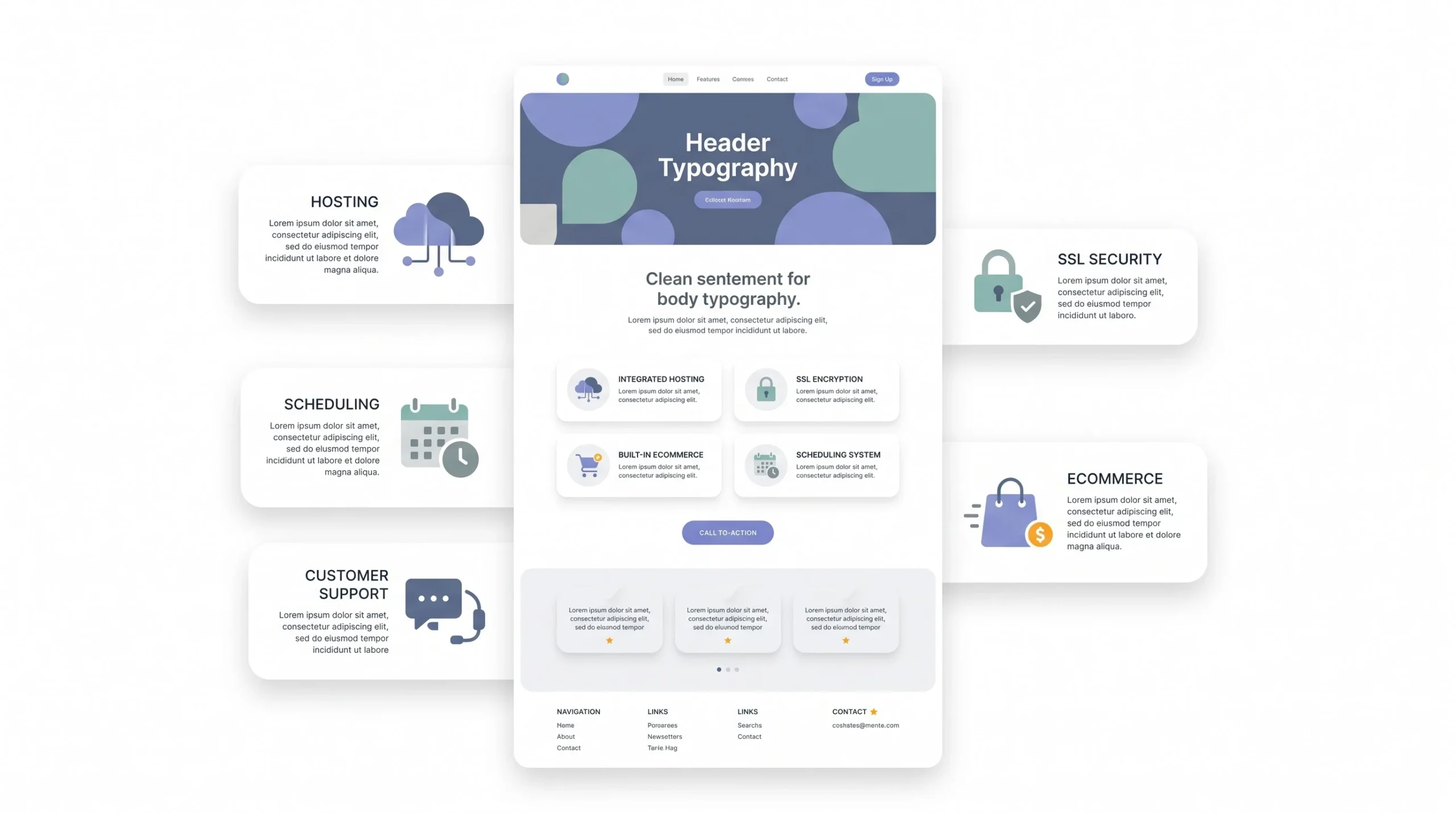
Squarespace is the all-in-one, template-driven builder built around one core idea: speed and simplicity over raw flexibility. Everything needed to get a good-looking site live sits in one dashboard, one login, one bill.
How it actually works
Sites get built starting from professionally designed templates, edited through what Squarespace calls its fluid engine editor. Hosting, SSL, and support are all bundled into the plan automatically. Higher-tier plans also unlock built-in ecommerce and scheduling tools depending on the business type.
Strengths
Speed is the standout strength here. Nothing else in this comparison gets a beginner from zero to a live, professional-looking site faster.
Design quality straight out of the box is genuinely strong. Squarespace templates tend to look premium and considered without needing extra design work layered on top, which isn’t something every builder in this price range manages to pull off.
Everything bundled into one bill, one dashboard, removes a whole category of decisions and moving parts that WordPress and even Webflow require juggling separately.
Built-in tools work well for specific niches in particular: portfolios for creatives, small ecommerce catalogs, service-based businesses, scheduling for appointment-based work.
Weaknesses
Flexibility is the clear tradeoff, and it’s the biggest one. Working within a template’s structure means hitting a ceiling on customization that neither WordPress nor Webflow imposes to the same degree.
SEO capability, while solid for the basics, is more limited than WordPress in terms of granular technical control. Fine for most small business needs, but a serious content-heavy SEO strategy will eventually feel the constraints.
Scaling to a large content library or complex custom functionality gets noticeably harder as a site grows. This isn’t the platform built for a 500-page content operation.
Pricing as of 2026 runs from $16 a month for the Basic plan up to $99 a month for the Advanced plan, both on annual billing, with the middle Core plan sitting around $23 a month, a reasonable fit for most small service businesses that need ecommerce basics without the highest tier.
Who Squarespace is actually for
Solo creatives and freelancers who need a portfolio live fast. Small service businesses, coaches, consultants, photographers. Anyone who wants a genuinely good-looking site live this week without hiring a developer or a designer.
The template ecosystem, and why fewer choices isn’t automatically a bad thing
Squarespace doesn’t try to compete on sheer volume of templates the way WordPress competes on plugin count. There are far fewer starting templates here than there are WordPress themes, and that’s actually deliberate. Every template goes through Squarespace’s own design team before release, which is a big part of why the baseline design quality feels so consistently strong compared to the wild range of quality that exists across free WordPress themes.
The tradeoff is real too. Fewer starting points means a higher chance of a site looking similar to someone else’s, especially within the same industry. Two photographers using the same template and similar imagery can end up with sites that feel more alike than either of them probably wants. It’s rarely a dealbreaker, but it’s worth knowing going in, and it’s one more reason a business planning a highly distinct brand identity might lean toward Webflow instead.
Third-party integrations: the honest limitation
Squarespace’s bundled, all-in-one approach is a strength for simplicity and a real limitation the moment a business needs a specific third-party tool that wasn’t built with Squarespace in mind. WordPress can connect to almost any external service through a plugin, and Webflow’s more open structure makes custom integrations more achievable too. Squarespace’s app marketplace covers the common needs, email marketing, scheduling, basic CRM connections, but falls short compared to the other two the moment a business has a specific piece of software it’s already built its operations around.
Head-to-Head Comparison
Individual deep dives only tell half the story. Here’s how the three actually stack up side by side, category by category, so the differences that matter for a real decision are easy to spot at a glance.
Pricing comparison
| Platform | Entry cost | Realistic cost for a small business site | What’s included |
|---|---|---|---|
| WordPress | Free software; hosting from around $3 to $10/mo | Roughly $300 to $800/year all in | Hosting bought separately, theme and plugins extra |
| Webflow | Free to build; Premium (with CMS) from ~$25/mo annual | Roughly $300 to $1,800/year depending on team size | Hosting bundled, seats and add-ons cost extra |
| Squarespace | From $16/mo annual | Roughly $190 to $1,200/year depending on plan | Hosting, SSL, and support all bundled |
Pricing on all three shifts often enough that these numbers should get a quick check against each provider’s current page before publishing anything permanent, but the shape of the comparison holds: WordPress has the lowest possible floor and the widest possible ceiling, Squarespace has the most predictable bill, and Webflow sits in between with costs that climb fastest once a real team gets involved.
Ease of use
| Platform | Learning curve | Time to first live page |
|---|---|---|
| WordPress | Moderate to steep | A few days |
| Webflow | Steep | Several days to a few weeks |
| Squarespace | Gentle | A few hours |
Design flexibility
| Platform | Customization ceiling | Design starting point |
|---|---|---|
| WordPress | Very high, with development work | Depends entirely on the theme chosen |
| Webflow | Very high, natively | Blank canvas or starter template |
| Squarespace | Moderate | Polished, ready-made templates |
SEO capability
| Platform | Technical SEO control | Built-in SEO tools | Site speed baseline |
|---|---|---|---|
| WordPress | Full control, via plugins like Yoast or RankMath | Depends on which plugins get installed | Varies a lot depending on hosting and setup |
| Webflow | Strong, and clean code output helps naturally | Native and solid | Generally fast out of the box |
| Squarespace | Limited to the basics | Native but basic | Good, though less tunable than the other two |
Ecommerce capability
| Platform | Native ecommerce | Transaction fees | Best fit |
|---|---|---|---|
| WordPress (WooCommerce) | Plugin-based, very capable at scale | None from WordPress itself, payment processor fees apply | Large or complex product catalogs |
| Webflow | Native, moderate capability | Depends on plan | Small-to-mid catalogs with strong design needs |
| Squarespace | Native, simple to set up | Ranges from around 2% down to 0% depending on plan tier | Small catalogs, straightforward checkout flows |
Scalability
| Platform | Handles 500+ pages well? | Handles high traffic well? | Multi-author workflows? |
|---|---|---|---|
| WordPress | Yes, this is exactly what it’s built for | Yes, with the right hosting behind it | Yes, strong role and permission controls |
| Webflow | Decent, CMS Collections help manage it | Yes | Limited compared to WordPress |
| Squarespace | Weaker as content libraries grow large | Decent | Limited |
Support and community
| Platform | Support type | Community size |
|---|---|---|
| WordPress | Forums, third-party resources, hosting-provider support | The largest CMS community that exists, by a wide margin |
| Webflow | Direct support plus an active community forum | Growing steadily, strongly design-focused |
| Squarespace | Direct chat and email support | Smaller than the other two, but consistently responsive |
Security and maintenance
This one rarely gets its own table in comparison articles, but it probably should, because it’s where the ownership tradeoff from earlier in this piece shows up most clearly in day-to-day reality.
| Platform | Who handles security patches | Backup responsibility | Risk of a broken site after an update |
|---|---|---|---|
| WordPress | The site owner, unless managed hosting is paying for it | The owner, or a hosting plan that includes it | Real, especially with plugin conflicts |
| Webflow | Handled entirely by Webflow | Handled entirely by Webflow | Low, since the platform controls the whole stack |
| Squarespace | Handled entirely by Squarespace | Handled entirely by Squarespace | Low, same reasoning |
This is really the same architecture tradeoff from earlier in the piece showing up again. Self-hosted means the owner is on the hook for keeping the software patched and backed up. Hosted means that job gets handled automatically, in exchange for less control over the underlying system. Neither approach is objectively safer across the board. WordPress sites that stay properly maintained are plenty secure. WordPress sites that don’t get maintained are where most of the horror stories about hacked sites actually come from.
Don’t pick based on sticker price alone. The cheapest platform on day one can turn into the most expensive one a year in, once the hours spent fighting its limitations, or the hours spent on maintenance, get counted.
Decision Framework: Which One Should Actually Get Picked
All the comparison data in the world doesn’t help without turning it into an actual decision. So here’s the real question each scenario answers.
A solo creative or freelancer who needs a portfolio live this week. Squarespace. Speed and out-of-the-box design quality matter more here than deep customization, and there’s no team or dev resources involved to justify a steeper platform. Nobody in this situation is trying to manage plugin updates or debug a broken CSS grid at midnight. The whole point is getting work in front of clients fast, and Squarespace is built exactly for that.
A growing business planning heavy content output that wants full control long-term. WordPress. The plugin ecosystem, SEO depth, and ownership over hosting make it the platform built to scale with a serious content strategy over years, not months. Anyone planning to publish weekly, build internal linking structures across hundreds of posts, or eventually bring in a technical SEO specialist is going to hit a wall on Squarespace and a smaller one on Webflow. WordPress simply wasn’t built with a ceiling on content volume.
A designer or agency that needs pixel-perfect custom design for a client. Webflow. When a client’s brand identity demands precision that templates can’t deliver, and there’s design skill on the team to use it, Webflow earns its steeper learning curve. This is also the right call when a client is paying for something visually distinct, not something that looks like it came off a template shelf.
Serious ecommerce with a large product catalog, inventory complexity, or custom logic. WordPress with WooCommerce. Nothing in this comparison handles complex catalogs, custom pricing rules, or deep inventory logic at scale the way WooCommerce does, precisely because it’s plugin-based and can be extended almost indefinitely. Squarespace and Webflow both handle small-to-mid catalogs well, but a store selling thousands of SKUs with variant-heavy inventory usually outgrows both eventually.
Something in between: real design control without full development complexity. Webflow again. It’s the platform built specifically to sit in that gap between “hire a developer” and “work inside a template.” A marketing team that wants to make layout changes themselves, without waiting on a dev sprint, but still needs the site to look genuinely custom, tends to land here.
| If the situation is… | Go with |
|---|---|
| A beginner who wants speed above everything | Squarespace |
| A content-heavy or scaling business | WordPress |
| A designer or agency needing custom visuals | Webflow |
| Running a large online store | WordPress with WooCommerce |
Conclusion
There’s no universally “best” CMS sitting out there waiting to be discovered. There’s only the best fit for a specific site, a specific budget, a specific skill level, and where that site needs to be in a year or two, not just this week.
WordPress means control, and it means owning the responsibility that comes with that control. Webflow means design precision, built for people who think visually and want that precision reflected exactly in the final build. Squarespace means speed and simplicity, the fastest path from nothing to a genuinely good-looking, working website. None of these is wrong. They’re just answering different questions.
The real mistake isn’t picking WordPress over Webflow, or Squarespace over WordPress. It’s picking any of them without first being honest about what the site actually needs to do, who’s going to maintain it, and where it’s headed next.
That last part is worth sitting with for a second longer than usual. Most people evaluating these three platforms are looking at where their business is today, not where it’ll be after a year of actually growing. A site that starts as a five-page portfolio can turn into a content operation publishing every week. A simple service page can turn into an online store. None of that means the wrong platform got picked at the start. It just means the questions worth asking now are less about which platform looks the nicest in a demo, and more about which one can grow sideways with the business without forcing a full rebuild the moment things start working.
Frequently Asked Questions
Is WordPress actually free?
The software itself, yes, completely free to download and use. But a live website needs hosting, and hosting isn’t free, so the real cost starts at whatever a hosting plan runs, typically $3 to $10 a month for something basic. Add a premium theme or a few paid plugins and the number climbs from there. So “free” is technically true and practically misleading at the same time.
Can a website get moved from one platform to another later?
Yes, but not equally easily across all three. WordPress is the most portable of the three, since the software and the hosting are already separate, so moving hosts or even rebuilding on a new theme doesn’t mean starting from zero. Squarespace and Webflow both hold more of the build inside their own systems, which makes a full platform switch closer to a rebuild than a move. Worth thinking about this before picking, not after.
Which platform is best for SEO?
WordPress offers the deepest technical SEO control out of the three, through plugins like Yoast or RankMath, full schema control, and granular site speed tuning. Webflow comes in a close second, mostly because its clean code output naturally helps site speed without extra work. Squarespace covers the basics solidly but caps out earlier than the other two once a strategy gets more advanced.
Does building a website require knowing how to code?
Not on any of the three, at least not for a standard site. Squarespace needs the least technical comfort of the group. WordPress needs a bit more, mostly around understanding hosting and plugin management rather than actual coding. Webflow sits in between, no code required, but a working understanding of how CSS and layout logic behave definitely helps.
Which one is genuinely the easiest for a total beginner?
Squarespace, by a fair margin. The templates are polished from the start, the editor is guided, and there’s no separate hosting decision to make. WordPress asks for more setup knowledge upfront, and Webflow asks for more design literacy. Neither is impossible for a beginner, but Squarespace has the gentlest starting curve of the three.
Can all three handle ecommerce?
Yes, but with real differences in depth. WordPress through WooCommerce handles the widest range, from a five-product store to a catalog running into the thousands. Webflow and Squarespace both handle small-to-mid sized stores comfortably, with Squarespace being the simpler of the two to set up and Webflow offering more design control over how the store actually looks.
Which platform is cheapest in the long run?
It depends heavily on how the site actually gets used, not just the starting price. Squarespace tends to be the most predictable, since everything’s bundled into one bill. WordPress has the lowest possible floor but the widest range, since costs scale with hosting quality, plugins, and how much gets added over time. Webflow’s costs climb the fastest once a real team and multiple seats get involved.
Is Webflow actually better than WordPress?
Neither is objectively better, they’re solving different problems. Webflow wins on design precision and clean code without touching a line of it. WordPress wins on ecosystem size, content scalability, and ownership over the whole stack. A designer building a highly custom brand site will likely prefer Webflow. A business planning to publish content for years will likely prefer WordPress.
How long does it actually take to get a site live on each platform?
Squarespace is the fastest, often a few hours for a simple site. WordPress usually takes a few days once hosting, a theme, and basic plugins are all set up properly. Webflow tends to take the longest for a first build, anywhere from several days to a few weeks, mostly because of the learning curve around its visual, code-like editor.
Which platform has the best customer support?
WordPress doesn’t have one central support line since it’s open-source software, so support comes through community forums, documentation, and whichever hosting provider gets chosen. Webflow and Squarespace both offer direct support since they’re fully hosted platforms, with Squarespace generally known for responsive live chat and Webflow offering solid documentation alongside its support team.
Does someone actually own their website on these platforms?
On WordPress, yes, completely. The software, the content, the hosting choice, all of it belongs to the site owner outright. On Webflow and Squarespace, the content and design still belong to the owner, but the underlying system the site runs on doesn’t, which is exactly why migrating away from either platform later takes more effort than migrating a WordPress site.
Can a site switch from Squarespace to WordPress or Webflow down the line without losing everything?
Content like text and images can usually get exported and moved over, but the design itself almost always needs a fresh build on the new platform. Nobody should expect a one-click transfer between any of these three. Planning for this possibility early, even if there’s no plan to switch anytime soon, saves a lot of frustration if growth ever does force the question.