

A few years back, a small ecommerce store lost about 40% of its checkout traffic overnight. Nothing changed on their end, no redesign, no pricing update, nothing. What happened was Chrome started flagging their checkout page as “Not Secure” because they were still running plain HTTP. People saw that warning right next to a page asking for their credit card number, and they bailed. That’s not a hypothetical. That’s what happens when a business treats HTTPS as optional in 2026.
Internet security isn’t some background concern anymore, it’s front and center for anyone with a website. Phishing attacks are up, data breaches make headlines every other week, and the average person, even one who’s never heard the word “encryption,” has learned to glance for that little padlock icon before typing in a password. That instinct didn’t come from nowhere. Browsers trained users to look for it, and users started trusting the sites that have it and bouncing off the ones that don’t.
So what is HTTPS, actually? Short version: it’s the secure version of the protocol that moves data between a visitor’s browser and your website’s server. The “S” stands for Secure, and it means the connection gets encrypted, so if someone’s snooping on the network, all they see is scrambled garbage instead of your password, your credit card number, or whatever else got typed into that form. Every site with the padlock icon in the address bar, from your bank to your Gmail to that random blog you read yesterday, is running HTTPS.
And look, the stakes here aren’t theoretical. Public WiFi at a coffee shop or an airport is one of the easiest places on earth to intercept unencrypted traffic, and plenty of people still log into accounts on those networks without a second thought. A site without HTTPS sitting on that same network is basically handing over a live feed of whatever gets typed into its forms. That’s the actual, concrete reason browsers, search engines, and security researchers have spent the last decade pushing every website toward encryption by default.
What You Will Learn in This Guide
- What HTTPS actually is and what it’s doing behind the scenes when you load a page
- What HTTP is, why it was built the way it was, and why that design is now a liability
- A full side-by-side comparison of HTTP and HTTPS, including what’s actually changed in browsers over the years
- The exact step-by-step handshake process that happens every time HTTPS kicks in
- What SSL and TLS are, how they’re different, and why people still say “SSL certificate” even though nobody’s actually running SSL anymore
- The different types of SSL certificates and which one fits which kind of website
- Why HTTPS matters for security, for SEO, and for basic user trust
- How to actually move a site from HTTP to HTTPS without breaking everything
- Common HTTPS errors, what causes them, and how to fix them
- The myths about HTTPS that still get repeated even though they’re wrong
What Is HTTPS?
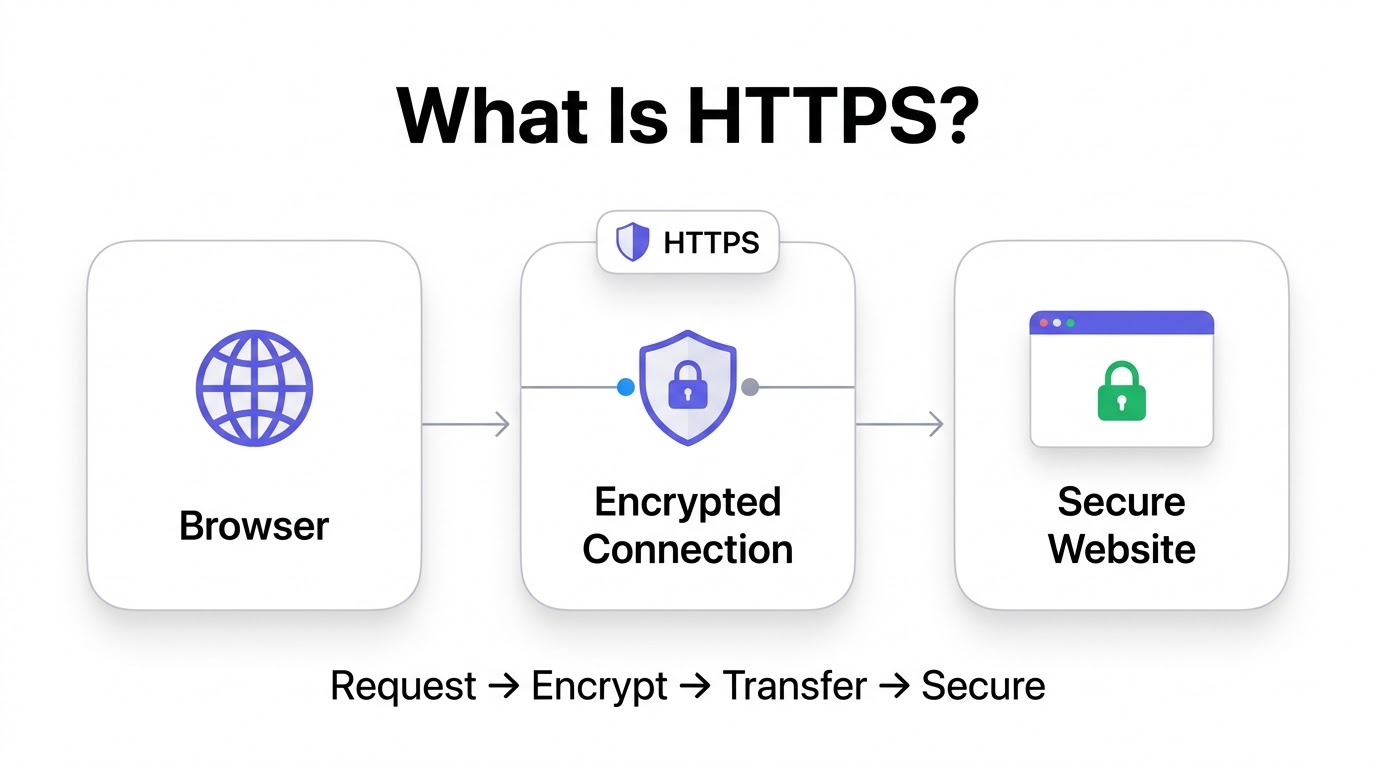
HTTPS stands for HyperText Transfer Protocol Secure. It’s the same core protocol as HTTP, the system that lets browsers request and receive web pages, except with an encryption layer wrapped around it. That encryption layer is what actually does the security work, scrambling data in transit so it can’t be read or altered by anyone sitting between the browser and the server.
For a beginner, here’s the simplest way to think about it: HTTP moves data in the open, readable by anyone with the right tools watching the connection. HTTPS locks that same data in a container only the intended recipient can open. The purpose isn’t complicated, it exists to keep the conversation between your browser and a website private, and to prove that website is actually who it claims to be. It exists because the open web, by default, trusts nothing and verifies nothing, and that turned out to be a massive problem the moment people started typing passwords and credit card numbers into browsers.
What HTTPS Actually Does
HTTPS does four specific jobs, and it’s worth naming each one because people tend to lump them all together as “it’s secure” without understanding what that actually covers. First, it encrypts data, turning readable information into scrambled ciphertext during transit, so anyone intercepting the connection gets nonsense instead of your password.
Second, it protects user privacy by preventing anyone on the network, your ISP, someone on the same public WiFi, a compromised router, from reading what you’re sending or receiving. Third, it verifies website identity through a certificate system, confirming the site you think you’re talking to is actually the site you’re talking to, not an impersonator sitting in the middle. Fourth, it prevents tampering, making sure the data that left the server is exactly the data that arrives at your browser, with nothing injected or altered along the way.
HTTPS in Plain English
Here’s an analogy that actually sticks. Sending data over HTTP is like mailing a postcard. Anyone who handles that postcard along the way, the mail carrier, someone at the sorting facility, a nosy neighbor who peeks in your mailbox, can read every word on it without you ever knowing. Sending data over HTTPS is like mailing a sealed, tamper-proof envelope. Even if someone intercepts it in transit, all they see is a sealed package they can’t open without the right key.
Or think of it as a locked tunnel. Data doesn’t just float across the open internet where anyone can grab it. It travels through an encrypted tunnel between your browser and the server, and anything trying to peek inside that tunnel just sees noise. One more version that clicks for a lot of people: it’s like a bank locker. Your money isn’t just sitting on a shelf where anyone walking by can grab it. It’s behind a lock that only opens with the right key, held by you and the bank, and nobody else.
Real-Life HTTPS Examples
Banking websites were among the first to adopt HTTPS everywhere, for obvious reasons, since they’re handling account numbers and balances that absolutely cannot leak. Ecommerce stores run on HTTPS because every single transaction involves a credit card number moving across the internet, and one leaked card number is a lawsuit waiting to happen.
Government portals use HTTPS because they’re handling social security numbers, tax filings, and identity documents, information that’s genuinely dangerous in the wrong hands. Gmail and every major email provider runs on HTTPS because email is full of exactly the kind of personal, sensitive content people don’t want intercepted. Social media platforms use it to protect login credentials and private messages, and online learning platforms use it because they’re handling payment info, student records, and sometimes even personal identification for verification purposes. Basically, if a site asks you to log in or pay for anything, and it’s not running HTTPS, something is very wrong.
There’s a pattern worth noticing across every one of these examples: it’s not just about the industry, it’s about what’s actually being typed into a form. A recipe blog with a comment section and an email newsletter signup is handling less sensitive data than a bank, sure, but it’s still handling something. Once you start thinking of HTTPS as “does this page ever ask someone to type something they’d rather keep private,” the answer for nearly every modern website ends up being yes.
What Is HTTP?
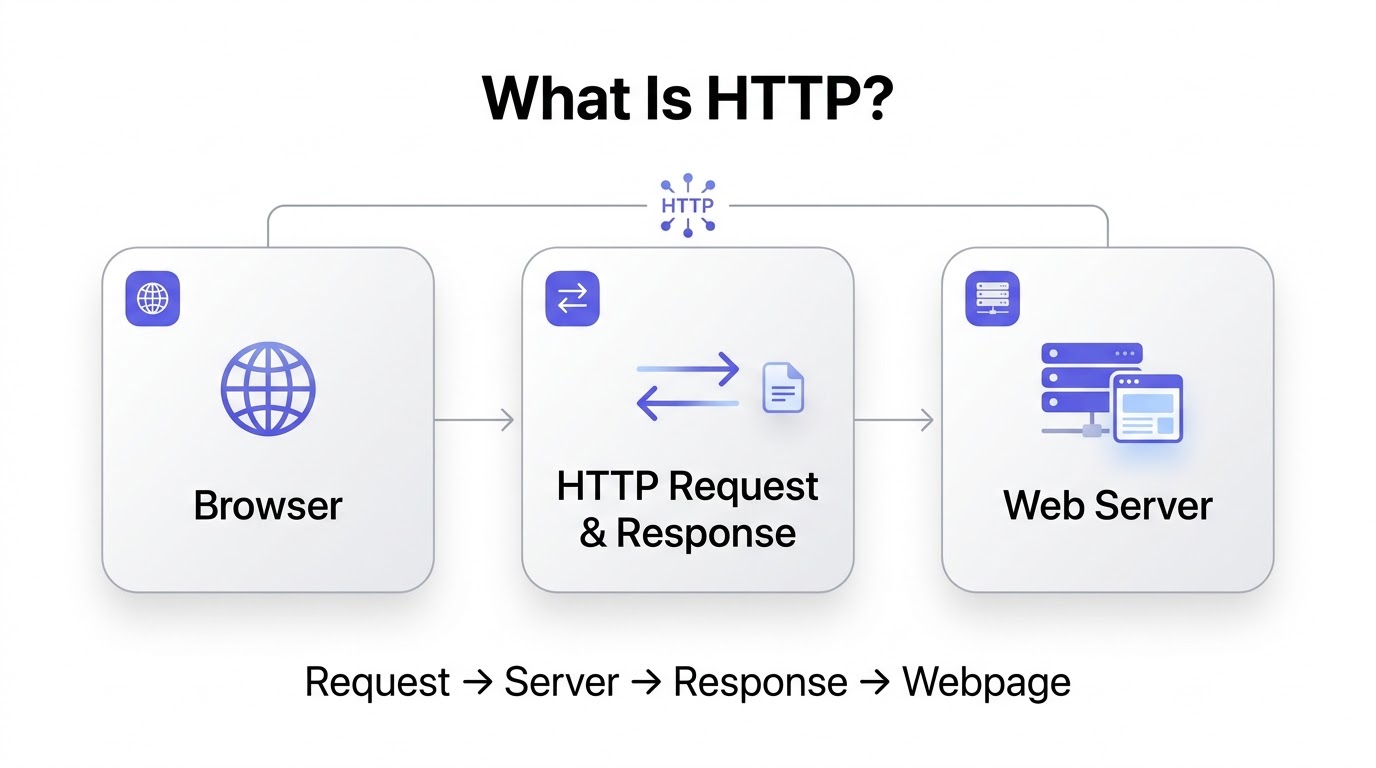
HTTP stands for HyperText Transfer Protocol. It’s the foundational system that lets a browser request a webpage from a server and get that page back, the basic request-and-response mechanism the entire web runs on. It’s been around since the early 1990s, and it’s the “http://” you used to see at the start of every URL before HTTPS became the default.
How HTTP Works
When you load a page over HTTP, your browser sends a request to a server, plain text, no encryption. The server processes that request and sends back a response, also plain text. Anyone capturing that traffic in between, on a shared network, at a compromised router, anywhere along the path, can read the entire exchange as easily as reading an open book. There’s no scrambling, no verification, nothing hiding the content of that conversation from anyone who wants to look.
Why HTTP Was Created
HTTP was built in 1991 by Tim Berners-Lee, when the web was a small, mostly academic network of researchers sharing documents. Security wasn’t the priority at that stage, because nobody was banking online or buying anything over this network yet. It was built to be simple and fast, moving text documents between a small number of trusted users, and for that original, narrow purpose, it worked fine.
Problems With HTTP
The problem is the web outgrew that original use case by a massive margin, and HTTP’s lack of security became a genuine liability. There’s no encryption, meaning every request and response travels in plain, readable text. That means data is visible to anyone intercepting the connection, full stop, no exceptions.
Password theft becomes trivially easy on an HTTP connection, since login credentials just travel across the network as readable text, no different from anything else on the page. Session hijacking is another real risk, where an attacker steals a session cookie mid-transit and effectively takes over a logged-in session without ever needing the actual password. And MITM attacks, man-in-the-middle attacks, are the umbrella threat covering all of this, where an attacker positions themselves between a user and a website to intercept, read, or even alter the traffic passing between them, all without either side realizing anything’s wrong.
HTTP vs HTTPS: Complete Comparison
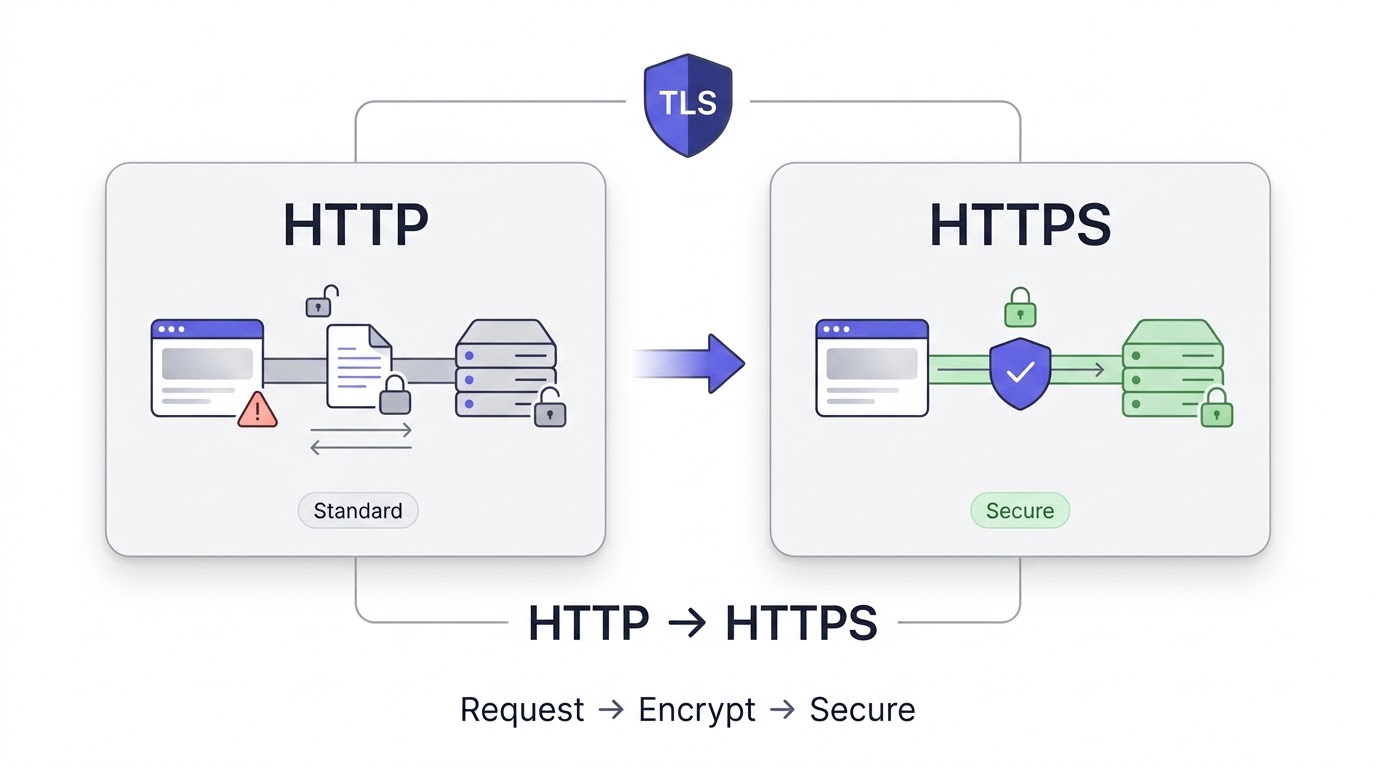
Here’s the side-by-side breakdown, because seeing it laid out this way makes the gap obvious fast.
| Feature | HTTP | HTTPS |
|---|---|---|
| Security | None, data travels unprotected | Encrypted end to end |
| Encryption | Not present | TLS encryption applied |
| Port | 80 | 443 |
| SEO | No ranking benefit | Confirmed Google ranking signal |
| Browser Warning | Flagged as “Not Secure” | Shows padlock, no warning |
| Speed | Slightly faster in raw terms, negligible in practice | Comparable or faster with HTTP/2 and HTTP/3 |
| Trust | Low, users hesitate on sensitive pages | High, padlock builds visible confidence |
| Certificates | None required | SSL/TLS certificate required |
| Authentication | No identity verification | Verifies site identity via certificate |
Which One Should You Use?
Honestly, there’s no real debate here anymore. HTTPS, full stop, for every single site, whether it’s a blog, a portfolio, a business site, or a full ecommerce store. There used to be an argument that static, content-only sites without logins or payments didn’t “need” HTTPS. That argument’s dead now, because Google flags every non-HTTPS site as insecure regardless of what it does, and that warning alone is enough to tank trust and traffic.
Why HTTP Is Becoming Obsolete
HTTP isn’t gone yet, plenty of old, neglected sites still run on it, but it’s on a clear path out. Browsers actively warn users away from it, Google factors it into rankings, and most modern web tools and APIs simply require HTTPS to function at all. What used to be a “nice to have” for security-conscious sites is now a baseline requirement just to be taken seriously online.
Browser Changes Over the Years
Chrome started marking HTTP pages as “Not Secure” in the address bar back in 2018, and that warning has only gotten more prominent since. Firefox followed a similar path, flagging insecure pages and even warning users before they submit a password on a non-HTTPS form. Safari does the same, showing “Not Secure” in the address bar for HTTP sites, especially ones with forms or login fields.
Edge, built on the same Chromium engine as Chrome, mirrors Chrome’s warning behavior closely. Across the board, every major browser has moved in the same direction: showing “Not Secure” labels prominently, front and center, right where a user’s eyes naturally land before they decide whether to trust a page enough to type anything into it.
How HTTPS Works (Step-by-Step)
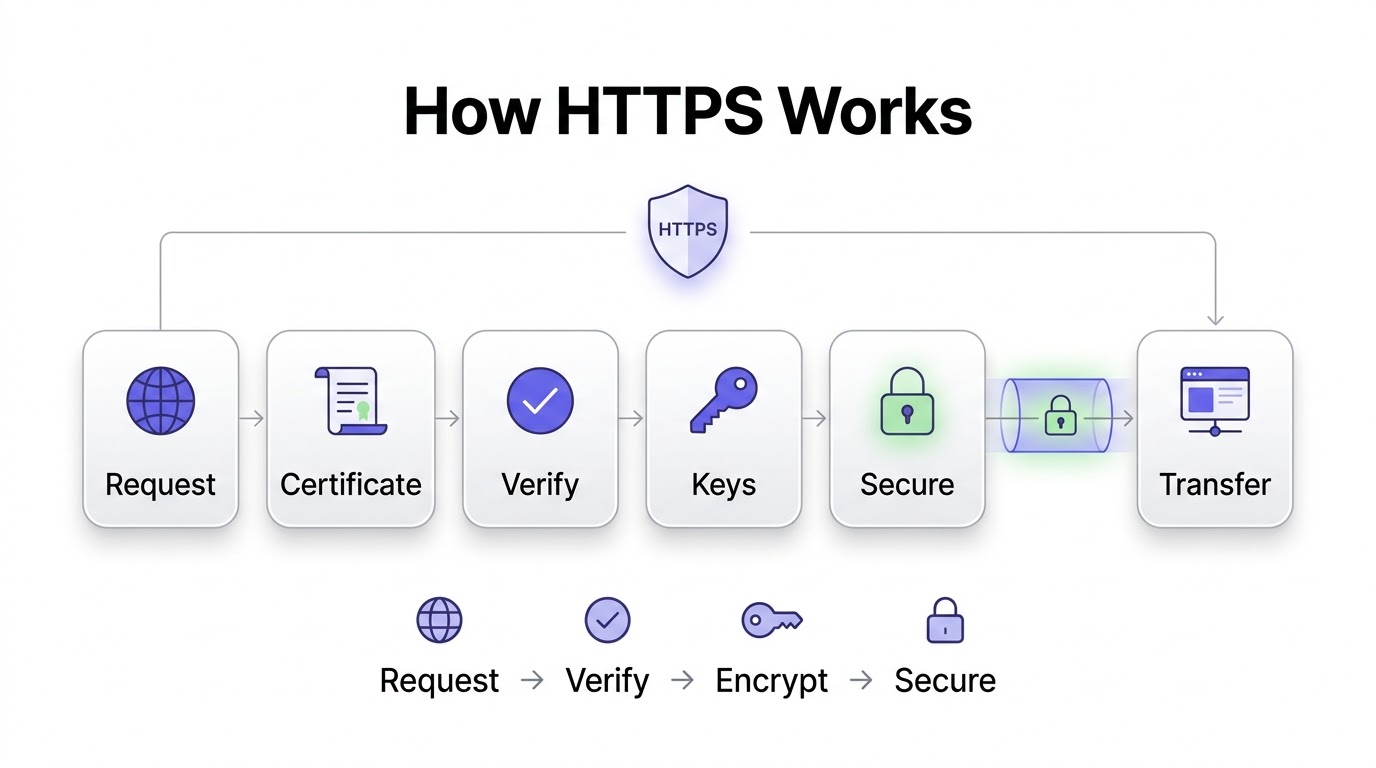
Step 1: User Requests Website
It starts the same way every web request starts. A user types a URL or clicks a link, and their browser sends a request to the server hosting that site. If the URL begins with “https://”, the browser knows immediately it needs to establish a secure, encrypted connection before any actual content gets exchanged.
Step 2: Website Sends SSL Certificate
The server responds by sending back its SSL/TLS certificate, a digital file that contains the site’s public key along with identity details verified by a Certificate Authority. This certificate is essentially the site’s ID card, proving it is who it claims to be before any sensitive data starts flowing in either direction.
Step 3: Browser Verifies Certificate
The browser checks that certificate against a list of trusted Certificate Authorities to confirm it’s legitimate and hasn’t expired or been revoked. If something looks off, wrong domain name, expired date, an untrusted issuer, the browser throws a warning immediately instead of quietly proceeding, which is exactly the “Your connection is not private” screen you’ve probably seen at some point.
Step 4: Encryption Keys Are Created
Once the certificate checks out, the browser and server work together to generate session keys used to encrypt the actual data that’s about to be exchanged. This step relies on public key cryptography to safely agree on those keys, even though the two sides are communicating over a network that could, in theory, be watched by someone else the whole time.
Step 5: Secure Connection Begins
With those keys in place, the encrypted “tunnel” the earlier analogy talked about officially opens up. From this point forward, everything sent between browser and server gets scrambled using those session keys, unreadable to anyone intercepting the traffic in between.
Step 6: Encrypted Data Transfer
The actual page content, form submissions, login credentials, whatever’s being exchanged, now flows through that encrypted tunnel. This entire process, from request to fully secured connection, typically happens in a fraction of a second, invisible to the user beyond that little padlock icon quietly appearing in the address bar.
User requests site → Server sends SSL certificate → Browser verifies certificate → Encryption keys generated → Secure connection established → Encrypted data flows both ways
What Is SSL?
SSL Definition
SSL stands for Secure Sockets Layer. It was the original protocol built to encrypt the connection between a browser and a server, and it’s the technology that first introduced the concept most people now associate loosely with “HTTPS security.”
Why SSL Was Introduced
SSL was introduced by Netscape back in 1995, at a point when ecommerce was just starting to become a real thing and it became obvious the open web needed some way to protect financial transactions. Before SSL, there was genuinely no standard method for encrypting web traffic at all, which made online commerce a real liability for anyone attempting it.
What SSL Does
SSL encrypts data in transit and provides a basic mechanism for verifying server identity, the same core jobs HTTPS handles today. It laid the technical groundwork that every secure web connection since has built directly on top of.
SSL Is Now Mostly TLS
Here’s the part that trips people up. SSL versions 1.0 through 3.0 all eventually turned out to have serious security flaws, vulnerabilities that made them exploitable by attackers using known, practical techniques. Because of that, TLS versions were developed as a direct successor, essentially SSL’s replacement, with each new TLS version patching weaknesses found in the one before it.
The industry transition from SSL to TLS happened gradually through the late 1990s and 2000s, and today literally no modern browser or server supports actual SSL anymore, it’s been fully deprecated for security reasons. Everyone still calls it an “SSL certificate” purely out of habit, force of terminology that stuck around long after the underlying technology itself moved on.
What Is TLS?
TLS Meaning
TLS stands for Transport Layer Security. It’s the modern encryption protocol that actually powers every HTTPS connection running today, despite the industry-wide habit of still calling the certificates involved “SSL certificates.”
Why TLS Replaced SSL
TLS was introduced in 1999 as a direct, more secure successor to SSL, built specifically to fix the vulnerabilities researchers had found in SSL’s design. Each version since then, TLS 1.0, 1.1, 1.2, and now 1.3, has tightened up the protocol further, closing gaps and dropping outdated, weaker cryptographic methods along the way.
TLS Security Improvements
TLS brought better encryption through stronger, more modern cryptographic algorithms that are dramatically harder to break than anything SSL originally used. It also brought stronger authentication, making it considerably harder for an attacker to successfully impersonate a legitimate website.
TLS 1.3 specifically introduced a faster handshake, cutting the number of back-and-forth steps needed to establish a secure connection, which shaves real, measurable time off page load speed. And across every version, TLS has consistently moved toward better algorithms, phasing out older, weaker ciphers in favor of ones that hold up against modern computing power and modern attack techniques.
SSL vs TLS: Complete Comparison
| Feature | SSL | TLS |
|---|---|---|
| Released | 1995 | 1999 |
| Encryption | Weaker, outdated algorithms | Stronger, modern algorithms |
| Security | Multiple known vulnerabilities | Actively maintained and secure |
| Supported Today | No, fully deprecated | Yes, TLS 1.2 and 1.3 in active use |
| Vulnerabilities | POODLE, DROWN, and others | None currently practical to exploit in TLS 1.3 |
So why does everyone still say “SSL certificate” when nobody’s actually running SSL? Pure habit, honestly. The term stuck in common usage back when SSL was the only option, and it never really got updated even after TLS quietly took over completely behind the scenes. You’ll see “SSL certificate” on certificate authority websites, in WordPress plugin names, everywhere, even though what you’re actually buying and installing is a TLS certificate doing TLS encryption.
What Is an SSL Certificate?
An SSL certificate, despite the outdated name, is a digital certificate that verifies a website’s identity and enables the encrypted connection HTTPS relies on. Think of it as a notarized ID document for a website, issued by a trusted third party, confirming “yes, this domain really belongs to the entity it claims to belong to.”
That verification runs on public key cryptography. The certificate contains a public key, which anyone can use to encrypt data sent to the server, and the server holds a matching private key, kept secret, used to decrypt that data on the receiving end. This public-private key pairing is the actual mathematical foundation the entire encryption process rests on.
Every certificate carries specific information worth knowing how to read. The domain name it’s issued for, since a certificate for example.com won’t work correctly on a different domain. The issuer, meaning which Certificate Authority verified and issued it. The expiration date, since certificates aren’t permanent and need regular renewal. The organization name, present on certain certificate types that verify actual business identity. And the public key itself, embedded directly in the certificate for browsers to use during that verification handshake.
Types of SSL Certificates
Domain Validation (DV)
DV certificates are the fastest and cheapest to get, since they only verify that whoever requested the certificate actually controls the domain in question, nothing more. They’re best for blogs, personal websites, and small businesses that need basic encryption without the extra identity verification a larger business might want to display.
Organization Validation (OV)
OV certificates go a step further, verifying the actual business or organization behind the domain, not just domain ownership. They’re suitable for business websites, NGOs, and company portals where visitors reasonably want some confirmation of who they’re actually dealing with, beyond just “someone controls this domain.”
Extended Validation (EV)
EV certificates involve the most rigorous verification process of the three, confirming legal, physical, and operational existence of the organization behind the site. These used to trigger a green address bar showing the company name directly, a visible trust signal browsers have since phased out in favor of more subtle indicators, though the underlying verification level itself remains just as strict. EV is best for banks, financial institutions, and large enterprises handling especially sensitive transactions.
Wildcard SSL
A Wildcard certificate covers a domain and every one of its subdomains under one single certificate, so example.com and blog.example.com and shop.example.com can all run on the same certificate instead of needing three separate ones.
Multi-Domain SSL
A Multi-Domain certificate, also called SAN for Subject Alternative Name, covers multiple entirely separate domains under one certificate, useful for a business running several distinct websites without wanting to manage a pile of individual certificates.
SAN Certificates
SAN certificates are technically the same underlying technology as multi-domain certificates, the Subject Alternative Name field is literally what allows one certificate to cover multiple domain names at once, so these two terms get used almost interchangeably in practice.
| Type | Verification Level | Best For |
|---|---|---|
| Domain Validation | Domain ownership only | Blogs, personal sites, small businesses |
| Organization Validation | Business identity confirmed | Company websites, NGOs |
| Extended Validation | Full legal and operational verification | Banks, financial institutions |
| Wildcard | Domain plus all subdomains | Sites with many subdomains |
| Multi-Domain / SAN | Multiple distinct domains | Businesses running several sites |
Why HTTPS Matters
Protects Passwords
Every login form on an HTTP connection sends that password as readable plain text across the network. HTTPS encrypts it before it ever leaves the browser, so even if someone’s intercepting the traffic, all they get is scrambled noise instead of a working credential.
Protects Payment Information
Credit card numbers, expiration dates, CVV codes, all of it travels encrypted under HTTPS, which is exactly why PCI compliance, the standard every business accepting card payments has to meet, requires HTTPS as a baseline, non-negotiable requirement.
Protects Customer Data
Beyond payments, HTTPS protects any personal information a visitor submits, addresses, phone numbers, account details, health information on medical sites, all of it shielded from interception during transit across the network.
Builds User Trust
That padlock icon isn’t just decoration. It’s a signal people have genuinely learned to look for, consciously or not, before they trust a site enough to enter sensitive information into it.
Prevents Website Spoofing
Because HTTPS verifies server identity through the certificate system, it makes it dramatically harder for an attacker to set up a convincing fake version of a legitimate site and trick users into handing over credentials on it.
Prevents Data Tampering
HTTPS doesn’t just hide data in transit, it also ensures that data arrives exactly as it was sent, unaltered, which stops an attacker from injecting malicious code or content into a page while it’s traveling across the network.
Required for Modern Browsers
Plenty of modern browser features, geolocation access, certain camera and microphone permissions, simply refuse to function at all on an insecure HTTP connection, full stop, no workaround.
Required for APIs
Most modern APIs, including practically every major payment processor and cloud service, require HTTPS for any request, and will straight up reject connection attempts made over plain HTTP.
Required for PWAs
Progressive Web Apps, the app-like experiences that run inside a browser, require HTTPS as a hard technical prerequisite, since the underlying technology they depend on won’t register at all without a secure connection in place.
Required for Service Workers
Service workers, the background scripts that power offline functionality and push notifications, also require HTTPS specifically, since they have deep enough access to browser behavior that running them over an insecure connection would be a serious security risk.
HTTPS and SEO
HTTPS Is a Google Ranking Signal
Google confirmed back in 2014 that HTTPS is a ranking signal, and while it’s a relatively lightweight one compared to content quality or backlinks, it’s still real, confirmed, and directly stated by Google itself, not some SEO myth passed around forums.
User Trust Improves Engagement
When people trust a site enough to stick around, click through to other pages, and not bounce immediately off a security warning, that behavior sends positive engagement signals that indirectly support better rankings over time.
Better Conversion Rates
Sites running HTTPS consistently see stronger conversion rates on forms and checkout pages specifically, because visitors are considerably more willing to submit sensitive information when they see that padlock sitting right there in the address bar.
Reduced Bounce Rate
A “Not Secure” warning is often enough on its own to make a visitor leave immediately, especially on any page asking for personal information, and that spike in bounce rate is exactly the kind of behavior search engines pick up on.
Browser Trust Indicators
Beyond the padlock, browsers surface security status in multiple places, connection details in the address bar, warning interstitials on genuinely risky pages, all of which shape a visitor’s split-second decision to trust a site or immediately back out.
HTTPS and Core Web Vitals
HTTPS itself isn’t a direct Core Web Vitals metric, but the modern protocols it enables, HTTP/2 and HTTP/3 specifically, genuinely improve load performance, which absolutely does feed into Core Web Vitals scores.
HTTPS in Google Search Console
Search Console shows HTTPS status directly under its Security & Manual Actions reporting, and a poorly executed migration, one with mixed content or broken redirects, throws up warnings there that are worth checking regularly, not just once during migration week.
HTTPS and Indexing
Google indexes the HTTPS version of a page as canonical by default when both HTTP and HTTPS versions happen to exist without a proper redirect in place, which is exactly why a clean, deliberate migration with correct 301 redirects genuinely matters for SEO health.
Google’s own official recommendation, stated plainly in their documentation, is to use HTTPS on every site, no exceptions carved out for smaller or content-only sites, regardless of whether that site handles logins or payments at all.
HTTPS and Website Performance
Here’s a myth that needs busting directly: HTTPS does not meaningfully slow a website down, not anymore, not with modern implementations. That reputation stuck around from the early 2000s, when encryption really was computationally expensive on the hardware available at the time. Today’s servers handle TLS encryption with essentially negligible overhead, milliseconds, not seconds.
HTTP/2 requires HTTPS as a practical prerequisite in virtually every browser, and it brings genuinely major speed improvements, multiplexing multiple requests over a single connection instead of the older method of opening a new connection for every single asset a page needs to load. HTTP/3, the newer protocol built on top of QUIC, pushes that even further, reducing latency and handling packet loss considerably better than earlier protocol versions ever did.
TLS optimizations, like session resumption, let a returning visitor’s browser skip parts of the full handshake process on repeat visits, shaving real, measurable time off load speed for any site with decent repeat traffic. Combine all this with CDN integration, which handles TLS termination extremely efficiently at edge locations physically closer to the actual visitor, and the net result is that HTTPS sites today frequently load faster than old HTTP sites ever did, not slower. The old “HTTPS slows things down” line just doesn’t hold up against how the modern stack actually performs.
Worth saying plainly: the handshake itself adds a small amount of latency on the very first connection, a few extra milliseconds, but that cost gets paid once and then amortized across everything else the browser does on that page. Compare that tiny upfront cost against what HTTP/2’s multiplexing saves by loading dozens of assets over one connection instead of opening a new one for each file, and encryption stops being the bottleneck anyone should actually worry about. If a site feels slow today, the real culprit is almost always unoptimized images, bloated JavaScript, or a server that’s undersized for its traffic, not the TLS handshake sitting quietly underneath everything.
Common HTTPS Errors and How to Fix Them
Not Secure Warning
This shows up when a site is running plain HTTP with no certificate at all, or has a real problem with an existing certificate. Fix: install a valid SSL/TLS certificate and make sure every single page, no exceptions, actually loads over HTTPS.
Certificate Expired
Certificates have a defined lifespan and simply stop working once that date passes, throwing an immediate warning to every visitor. Fix: renew the certificate before it expires, and honestly, just set a calendar reminder or better yet, use auto-renewal wherever your provider supports it.
Mixed Content
This happens when an HTTPS page loads some resources, images, scripts, stylesheets, over plain HTTP instead of HTTPS, which undermines the whole point of securing the page in the first place. Fix: update every single internal resource link to use HTTPS, and run a mixed content scanner across the site to catch anything that got missed in a manual check.
NET::ERR_CERT_AUTHORITY_INVALID
This error appears when a certificate was issued by an authority the browser doesn’t recognize or trust, often from using a self-signed certificate on a live, public-facing site. Fix: install a certificate from a properly trusted, recognized Certificate Authority instead.
SSL Handshake Failed
This happens when the browser and server can’t agree on encryption parameters during that initial handshake process, often because of an outdated or misconfigured server setup. Fix: update server TLS configuration and make sure it supports current, modern TLS versions correctly.
Too Many Redirects
This usually points to a redirect loop, most commonly caused by both the server and a plugin or CDN each trying to force HTTPS redirects independently, and stepping on each other’s toes in the process. Fix: check redirect rules at every single layer, server, CMS, and CDN, and make sure only one of them is actually handling that redirect.
Privacy Error
A broader warning category, this covers various certificate problems all at once, expired, mismatched domain, untrusted issuer. Fix: check certificate details directly in the browser to pinpoint the exact specific issue, then address that root cause rather than guessing.
How to Move Your Website from HTTP to HTTPS
Purchase or Install SSL Certificate
Get a certificate matching your actual needs, DV for a basic blog, OV or EV for a business handling more sensitive data. Plenty of hosts now include free certificates through Let’s Encrypt automatically, so check there first before paying anything.
Install Certificate
Most modern hosting providers handle installation automatically these days, but on custom or self-managed servers, that means manually configuring it in something like Apache or Nginx directly.
Update CMS Settings
Platforms like WordPress have a specific site URL setting that needs to be updated to use “https://” explicitly, or the CMS itself will keep generating HTTP links throughout the site even after the certificate’s already installed.
Update Internal Links
Every internal link hardcoded as “http://” across your site’s content needs to be changed to “https://”, or you’ll end up with a genuinely messy mixed content problem right out of the gate.
Force HTTPS
Configure the server so it automatically redirects any HTTP request straight to the HTTPS version, ensuring absolutely nobody, human visitor or search crawler, ever lands on an insecure version of any page on the site.
Redirect HTTP to HTTPS (301)
Specifically, use a 301 permanent redirect, not a 302 temporary one, since 301s properly pass ranking signals to the new HTTPS URLs and clearly tell search engines this move is permanent, not some temporary test.
Update Canonical URLs
Every canonical tag across the site needs updating to point to the HTTPS version, or you risk sending genuinely mixed, confusing signals to Google about which version of each page is actually the correct one to index.
Update Sitemap
Regenerate the XML sitemap with HTTPS URLs throughout, then resubmit it in Google Search Console so Google can recrawl and reindex the site’s new, correct URL structure as quickly as possible.
Update Robots.txt
Check the robots.txt file for any hardcoded HTTP references, and make sure it correctly points to the HTTPS sitemap location as well, not the old outdated one.
Verify in Google Search Console
Add the HTTPS version of the property in Search Console if it isn’t already there, and keep a close eye on crawl stats and coverage reports over the following weeks to catch any migration issues early.
Test Website
Run the site through a mixed content checker, click through every major page manually, and confirm that padlock is showing consistently everywhere before calling the migration fully done.
Migration checklist: SSL certificate installed, CMS URL updated, internal links updated, HTTPS forced site-wide, 301 redirects in place, canonical tags updated, sitemap regenerated and resubmitted, robots.txt checked, Search Console property verified, full site tested for mixed content.
The exact steps shift a bit depending on the platform. On WordPress, most of this can be handled through a plugin like Really Simple SSL, which detects mixed content and rewrites internal URLs automatically, though it’s still worth manually checking the Settings > General screen to confirm the site and home URLs both show HTTPS. On Shopify, HTTPS is enabled automatically for every store with zero manual certificate work required, but store owners still need to double-check custom domains and any hardcoded HTTP links inside theme templates or apps. On a custom-built site, the process is more hands-on: installing the certificate directly on the server, updating the web server config, Apache or Nginx, to force the redirect, and manually auditing the codebase for hardcoded HTTP references that a CMS plugin would otherwise catch automatically.
How to Check Whether a Website Uses HTTPS
The simplest method: just look at the URL itself. If it starts with “https://” instead of “http://”, the connection is secure. Second, check for the browser padlock icon sitting right in the address bar, right next to the URL itself, which is the fastest, most visible visual confirmation.
For more detail, certificate inspection lets you click that padlock and view the actual certificate, checking the issuer, expiration date, and which domain it’s actually valid for. Developer tools, accessible in every modern browser through the Security tab, show detailed connection information including the specific TLS version currently in use. And plenty of free online SSL checkers exist that will scan any given URL and generate a full, detailed security report in seconds, no login or account required.
Best Practices for HTTPS Security
Use TLS 1.3, the current, most secure version available, and disable older, weaker versions entirely wherever your server configuration allows it. Renew certificates before expiry, ideally through automation, since a single missed renewal can knock an entire site offline from a trust standpoint overnight, with zero warning to visitors beyond a sudden security error.
Enable HSTS, HTTP Strict Transport Security, which tells browsers to only ever connect to your site over HTTPS, permanently, even if someone manually types “http://” into the address bar by habit. Redirect HTTP to HTTPS site-wide, without exception, on every single page and resource.
Fix mixed content immediately wherever it shows up, since it actively undermines the security of an otherwise properly secured page. Disable old SSL versions entirely on the server, since they carry known, documented, exploitable vulnerabilities that provide zero benefit for keeping around at this point.
Use secure cookies, specifically flagging cookies with the Secure attribute so they’re only ever transmitted over an encrypted HTTPS connection. Enable OCSP Stapling, which speeds up certificate validation and improves overall page load performance in the process. Use strong cipher suites, avoiding outdated, weak encryption algorithms that remain technically functional but are no longer considered genuinely secure. And monitor certificate expiry continuously, ideally through automated alerts, rather than discovering a certificate lapsed only after a customer emails you confused and worried about a scary browser warning.
Conclusion
HTTPS stopped being optional a while ago, and honestly, treating it as some extra security feature you’ll get around to eventually is a mistake that costs real traffic and real trust. It protects passwords, payment details, and personal data in transit. It’s a confirmed part of how Google ranks pages. And it’s the single visual signal, that small padlock, that tells a visitor within half a second whether they should trust your site enough to type anything sensitive into it.
Performance isn’t a valid excuse anymore either. Modern TLS, combined with HTTP/2 and HTTP/3, means secure sites frequently load faster than old unsecured ones, not slower. And the cost argument doesn’t hold up either, not with free, fully trusted certificates available through Let’s Encrypt and baked into most hosting plans by default.
If your site’s still running on plain HTTP, that’s the first thing to fix, today, not next quarter. Get a certificate installed, force HTTPS site-wide, set up your 301 redirects properly, and update your sitemap and canonical tags to match. It’s a few hours of focused work that pays off in security, in search visibility, and in the basic trust every single visitor needs before they’re willing to do anything meaningful on your site.
Frequently Asked Questions
What is HTTPS?
HTTPS, HyperText Transfer Protocol Secure, is the encrypted version of HTTP that protects data traveling between a browser and a website’s server. It encrypts information, verifies the site’s identity, and prevents tampering, and it’s identifiable by the padlock icon in the browser’s address bar.
What is the difference between HTTP and HTTPS?
HTTP transmits data in plain, readable text with no encryption at all, while HTTPS encrypts that same data using TLS, making it unreadable to anyone intercepting the connection. HTTPS also verifies site identity through a certificate, something plain HTTP never does.
Why is HTTPS important?
HTTPS protects sensitive data like passwords and payment details from interception, builds visible user trust through the padlock icon, and is a confirmed Google ranking signal. Without it, browsers actively flag a site as “Not Secure,” which measurably hurts both trust and traffic.
Does HTTPS improve SEO?
Yes, Google confirmed HTTPS as a ranking signal back in 2014. It’s a relatively lightweight signal on its own, but it also indirectly supports SEO through better user trust, lower bounce rates, and the performance gains that come from HTTP/2 and HTTP/3.
Is HTTPS free?
Yes, it can be. Let’s Encrypt provides free SSL/TLS certificates that offer the exact same encryption strength as paid options, and most modern hosting providers now include free certificates automatically as part of standard hosting plans.
What is an SSL certificate?
An SSL certificate is a digital certificate that verifies a website’s identity and enables the encrypted connection HTTPS depends on. Despite the name, most certificates issued today actually use TLS encryption, not the older, deprecated SSL protocol itself.
Can HTTPS prevent hacking?
No, and this is a common, genuinely important misconception. HTTPS secures data specifically while it’s in transit between browser and server. It does nothing to stop other common attack vectors like SQL injection, weak passwords, or outdated, unpatched plugins.
What happens if a website doesn’t use HTTPS?
Browsers flag it as “Not Secure,” often right in the address bar where every visitor sees it immediately. Users tend to leave, especially on any page with a login form or payment field, and the site loses out on the confirmed SEO ranking benefit HTTPS provides.
Is TLS better than SSL?
Yes, significantly. TLS replaced SSL specifically because SSL had multiple serious, documented security vulnerabilities. No modern browser or server supports actual SSL anymore, TLS has fully taken over despite the “SSL certificate” naming convention sticking around out of habit.
How do I enable HTTPS on my website?
Install an SSL/TLS certificate, either free through Let’s Encrypt or purchased through a Certificate Authority, then configure your server or CMS to force HTTPS site-wide and set up proper 301 redirects from every HTTP URL to its HTTPS equivalent.
What is HTTPS used for?
HTTPS is used to encrypt data moving between a browser and a website, protecting passwords, payment information, and any personal data submitted through forms. It’s also required for many modern browser features, APIs, and technologies like Progressive Web Apps.
How can I check if a website is secure?
Look for “https://” at the start of the URL and the padlock icon in the browser’s address bar. Clicking that padlock shows certificate details, including who issued it and when it expires, for a closer look if needed.
What is a mixed content warning?
A mixed content warning appears when an HTTPS page loads some resources, like images or scripts, over plain HTTP instead of HTTPS. It undermines the security of the page and needs fixing by updating every affected resource link to HTTPS.
Does every website need HTTPS?
Yes. Even a simple blog or portfolio site benefits from HTTPS through the SEO ranking signal, browser trust, and protection for any forms on the site. Google’s own official guidance recommends HTTPS for every website, with no exceptions carved out by site type.
Can I use HTTPS without buying an SSL certificate?
Yes, through free options like Let’s Encrypt, which issues certificates at no cost with the same encryption standard as paid certificates. Most hosting providers now offer this integration automatically, making free HTTPS setup genuinely simple for most site owners.