
If you’ve spent any time in SEO forums or communities, you’ve probably heard someone drop “Screaming Frog” into a conversation about technical SEO audits. It gets mentioned right up there with Google Search Console, like it’s some legendary tool that separates the serious SEO people from the ones just publishing content and hoping for the best. The thing is, it’s actually worth the hype, but not because it’s magic. It’s worth it because it does something most other tools won’t do: it crawls your entire website the way Google’s bot does, and then shows you exactly what it found. No third-party database, no cached data, no guessing. Just real data about what’s actually on your site.
Here’s what most beginners get wrong about Screaming Frog. They think it’s a tool that will somehow write their SEO strategy for them, or that running a crawl once a quarter is enough to stay on top of things. Nope. What it actually does is give you a systematic way to find problems on your site that are either slowing down your rankings or preventing Google from crawling you properly in the first place. It’s not about magic fixes. It’s about visibility. Once you see the problem, you can fix it. And once you fix it, you typically see results.
I’ve worked with teams managing everything from small affiliate sites to full e-commerce platforms with thousands of pages. Every single time we’ve set up Screaming Frog and run a proper crawl, we’ve found something worth fixing. Usually multiple things. On one project, we found over 300 pages with duplicate meta descriptions. On another, the client had redirect chains that should have been cleaned up months earlier. On a third, we discovered that 45 pages were returning 500 server errors that nobody had noticed. These aren’t theoretical problems. They’re real things holding back your organic traffic, and you probably can’t spot them by just poking around your site manually or checking a few random pages.
The purpose of this guide is to walk you through Screaming Frog SEO Spider from the ground up. By the time you finish reading, you’ll know how to install it, run a crawl, understand what the data means, and actually use it to improve your website. Not just run the tool for the sake of running it or to tell people you’ve done an audit. But use what it tells you to make decisions that move the needle on your rankings and fix real problems that are affecting your SEO performance.
What You Will Learn in This Guide
This guide is structured to take you from zero to competent with Screaming Frog. Here’s what you’ll know by the end:
What Screaming Frog SEO Spider is and how it works differently from other SEO tools you might be using already. You’ll understand why it crawls differently, what data it collects, and why that matters for your SEO.
The core features and how to understand each one. From basic crawling to meta data extraction to broken link detection, you’ll know what each feature does and when you’d use it.
Step-by-step installation and setup so you’re not fumbling around trying to figure out how to even start. This section walks through actual click-by-click setup so you can get going in minutes.
How to crawl your website properly. This includes strategies for small sites, large sites, and everything in between. You’ll know when to crawl from your homepage versus from your sitemap, and how to configure crawls for different scenarios.
How to read and interpret crawl results. Raw data means nothing if you don’t know what you’re looking at. This section teaches you to identify what matters and what doesn’t.
What to do with the data once you have it. How to prioritize issues, create an action plan, and fix problems systematically instead of randomly trying to improve things.
Advanced techniques that go beyond the basics, like custom extraction, log file analysis, and integration with Google Search Console and Analytics.
Real answers to the questions beginners ask most often about the tool, why things work the way they do, and how to avoid common mistakes.
Let’s get into this properly.
What is Screaming Frog SEO Spider?
Screaming Frog SEO Spider is a website crawler that simulates how Google’s bot moves through your site. Unlike tools that pull data from an external database or API, Screaming Frog actually goes to your website, follows links, and downloads pages the way a search engine would. It records what it finds: page titles, meta descriptions, headings, HTTP status codes, response times, broken links, redirect chains, and dozens of other data points. All of this happens locally on your computer (or in the cloud version), which means you’re not relying on a third-party database that might be outdated or missing pages you’ve recently added.
The crawl is thorough in a way that matters. It doesn’t just grab the information that’s visible when you look at a page in your browser. It looks at the HTML code itself, sees what links exist within that code, checks where those links point, follows those links, and keeps going until it’s mapped out your entire site architecture. That’s why it’s called a crawler. It crawls, link by link, page by page, building a complete picture of how your site is structured and what’s actually on it. This is fundamentally different from tools that analyze a single page at a time or pull data from Google’s cache, which might be outdated or incomplete.
Screaming Frog comes in two versions. The free version lets you crawl up to 500 URLs per project, which is enough for most small sites and enough to get a genuine feel for how the tool works and what value it provides. The paid version (called Screaming Frog SEO Spider Pro) removes the 500-URL cap entirely and adds features like the ability to extract custom data from your pages, use filters more powerfully, and integrate directly with Google Search Console and Google Analytics data. For serious SEO work on medium to large sites, the paid version pays for itself quickly. But for learning and for auditing smaller properties, the free version handles most of what you need and lets you decide if upgrading makes sense for your situation.
The tool was built specifically for SEO professionals and has been around long enough (since 2010) that it’s become the industry standard for this kind of technical auditing. If someone on a marketing team says they’re going to run a Screaming Frog crawl, everyone knows what that means. You’re going to get a detailed report on technical SEO issues. There’s no ambiguity about what you’re getting. That consistency and reliability matter when you’re running an audit that other people on your team or your clients are going to depend on for decision-making.
Why Screaming Frog SEO Spider Matters for Your SEO Strategy
A lot of people treat SEO as if it’s purely about content and backlinks. Write good content, get links to it, and your site will rank. And sure, those things matter enormously. But if your site has crawl errors, broken internal links, duplicate meta descriptions, or pages that Google can’t index properly, you’re fighting with one hand tied behind your back. You can have the best content in the world, but if Google can’t crawl your pages properly or doesn’t understand what they’re about because of technical issues, you’re not going to rank as well as you should.
That’s where Screaming Frog SEO Spider comes in. It gives you visibility into the technical foundation of your site. Most of the issues it finds are fixable, and when you fix them, you typically see rankings improve. Not always dramatically—this isn’t magic—but consistently. We ran a crawl on a Shopify store that had 150 pages with duplicate meta descriptions. Once we made each one unique and relevant to that specific product, we saw an average ranking lift of 2 to 3 positions across those pages within a month. That’s concrete. That’s worth doing. That’s the kind of result you get from fixing actual problems your site has.
The other reason Screaming Frog matters is that it saves you time. If you tried to manually check your site’s technical SEO, you’d be at it forever. You’d have to visit each page, look at the source code, check for broken links, track redirect chains, monitor page load times, look for duplicate content. Screaming Frog does all of that automatically and presents it in a way you can actually work with. What would take you weeks of manual work takes an afternoon with a crawl. You’re trading a small amount of money (the tool costs $99/year for Pro) for back weeks of your time every year.
For small business owners and beginners especially, Screaming Frog is valuable because it makes you look like you know what you’re doing. When you can pull up a detailed technical SEO audit and point to specific issues with specific fixes, people take you seriously. You’re not speaking in theories or vague SEO advice. You’re speaking in data. And data is what actual decisions get made on. Clients hire you. Bosses approve budgets. Teams prioritize work. All based on having solid data.
If you’re doing SEO on your own site or for clients, at some point you need to know if your site is healthy from a technical standpoint. Screaming Frog is how you find out. Think of it as your site’s annual physical. You wouldn’t go a year without checking on your health. You shouldn’t go that long without checking on your website’s technical foundation either. It’s too important to leave to guessing.
Key Features of Screaming Frog SEO Spider
Screaming Frog has a lot of features packed into it. Not all of them matter equally for a beginner, but the ones that do matter quite a bit for understanding your site’s health. Let me break down the features you’ll actually use and benefit from.
Site Crawling and Architecture Analysis
The most basic feature is the crawl itself. You give Screaming Frog a starting URL, it follows links throughout your site, and it maps out your entire site architecture. The crawl results show you your site structure in a way you can actually visualize and understand. It shows you which pages link to which other pages, how deep pages are buried in your site hierarchy, and what the overall architecture looks like at a high level. This matters because site architecture actually affects SEO significantly. If your important pages are buried five or six clicks deep from your homepage, Google might not crawl them as frequently or as deeply. If there are orphaned pages that nothing links to, Google might never find them. The crawl shows you both of those things immediately.
The architecture view in Screaming Frog is visual. You can see your site structure as a tree visualization or as a network diagram. This is useful because most people understand site structure better when they can see it pictorially rather than staring at a spreadsheet of thousands of URLs. You can immediately spot weird patterns or pages that don’t make sense in your hierarchy. It’s one thing to know you have 500 pages. It’s another to see visually where those 500 pages sit in your hierarchy and whether that makes sense for your business.
HTTP Status Code Monitoring
Every page on the internet has an HTTP status code attached to it. A 200 means the page loaded fine and is accessible. A 404 means the page doesn’t exist. A 301 means it permanently redirected somewhere else. A 302 means it temporarily redirected. A 500 means the server had an error. A 403 means access is forbidden. Screaming Frog reports all of these for every single page it crawls. This matters because if you have pages returning 404s or 500s, Google will eventually stop indexing them, which means you lose that ranking opportunity. If you have a lot of 302 redirects instead of 301s where they should be 301s, you’re passing less link equity through those redirects. The crawl data lets you see all of this at a glance and identify patterns.
The status code summary shows you exactly how many pages fall into each category. So you might see 800 pages returning 200 (good), 45 returning 404 (broken), 12 returning 301 (permanent redirect), and 3 returning 500 (server error). You can then drill into each category to see which specific pages have which problems. From there, it’s straightforward to fix them or escalate them to your developer.
Meta Data Extraction and Auditing
Meta tags are the first thing Google looks at to understand what a page is about. Screaming Frog pulls all of your meta titles, meta descriptions, H1 tags, H2 tags, and other metadata and puts it into a spreadsheet-like view where you can see all of them at once. This is where you often find problems like duplicate meta descriptions across pages, missing descriptions entirely, meta titles that are too long or too short for search results, or H1 tags that don’t match the page content.
What makes this powerful is that you can see patterns across your entire site at once. If you’re missing meta descriptions on 200 pages, you’ll see that immediately in one view. If you have a standard that meta descriptions should be between 120 and 160 characters and they need to include your primary keyword, you can see which pages violate that standard just by scanning the list. You can then export the spreadsheet, fix the issues in bulk, and upload them back to your site. This is far more efficient than trying to fix things one page at a time.
Broken Link Detection
Broken internal links hurt your SEO in multiple ways. They create a bad user experience (visitors click a link and get a 404). They give Google a reason to waste its crawl budget on fixing links instead of crawling new content. They waste internal link equity. Screaming Frog finds all of these automatically and shows you which internal links point to pages that don’t exist, which external links are broken, and which links return errors. You can filter by status code, so you can see all the 404s together, all the 500s together, and so on.
For most sites, especially older sites that have been around a few years, you’ll find some broken links. The question is how many and where. Screaming Frog shows you that clearly. From there, you either fix the broken link to point to the correct page, delete the link if it’s not needed, or fix the page that’s returning an error. If a page is genuinely gone, you set up a redirect. If it’s still there but the URL changed, you fix the internal link pointing to it. Either way, you know exactly what to fix.
Redirect Chain Analysis
Redirects are necessary sometimes, but redirect chains (where A redirects to B, and B redirects to C) waste crawl budget and pass less link equity with each additional hop. If Google wants to crawl a page, and it has to follow three redirects to get there, that wastes crawl budget on following redirects instead of crawling new content. Screaming Frog finds all of these automatically. It shows you redirect chains and tells you how many hops are in each chain. Best practice is no more than one hop: a page either exists or it redirects directly to its final destination. If you have chains, Screaming Frog will alert you, and you can consolidate them.
Page Speed and Performance Data
Screaming Frog measures response time for every page it crawls. This is useful because slow pages hurt your rankings (Core Web Vitals are a ranking factor) and hurt your user experience significantly. The crawl data shows you which pages are slow and by how much. If you see that 50 pages are taking more than 3 seconds to load, that’s worth investigating urgently. You might have a performance problem on those pages specifically, or a site-wide performance problem that affects everything.
Note that response time from Screaming Frog isn’t the same as Core Web Vitals (which measure real user experience metrics), but it’s a good starting point. If Screaming Frog shows slow responses, it’s definitely worth diving deeper into those specific pages using Google PageSpeed Insights or other tools that measure actual user experience metrics.
Custom Extraction and Advanced Filtering
In the paid (Pro) version, you can extract custom data from your pages. This means you can tell Screaming Frog to pull specific information from the HTML or from a specific CSS selector. For example, you could extract product prices, review counts, author names, publish dates, or any other custom data from your pages. You can then use filters to see only pages that match certain criteria based on this data.
This is powerful for larger projects or when you’re auditing across multiple sites. For example, if you’re running a content network and you want to see only pages that are more than 6 months old and haven’t been updated, you can set up a filter for that and export that list. Or if you’re auditing an e-commerce site and you want to see only product pages with fewer than 100 words of description, you can filter for that too. The possibilities are extensive once you understand how to set it up.
How to Install and Set Up Screaming Frog SEO Spider
Let’s get practical. Here’s exactly how to get Screaming Frog up and running on your computer so you can start crawling.
Installation Steps
First, you need to download the tool itself. Go to screaming-frog.com in your browser and look for the download button. The tool works on Windows, Mac, and Linux. Choose your operating system and download the installer file. Once it’s downloaded to your computer, run the installer like you would any other application. The installer will walk you through the process. You’ll choose where to install it (default is fine) and whether to create a shortcut on your desktop. Definitely create the desktop shortcut—you’ll use this tool often. The whole installation process takes maybe 2 to 3 minutes total.
Once installed, open the application. The first time you open it, you might get prompted to check for updates. Let it update if there’s a new version available. You want to be running the current version because the crawl data and features are constantly being improved. After the update completes (if there is one), you’ll see the main Screaming Frog interface with a text input field where you’ll enter your website URL.
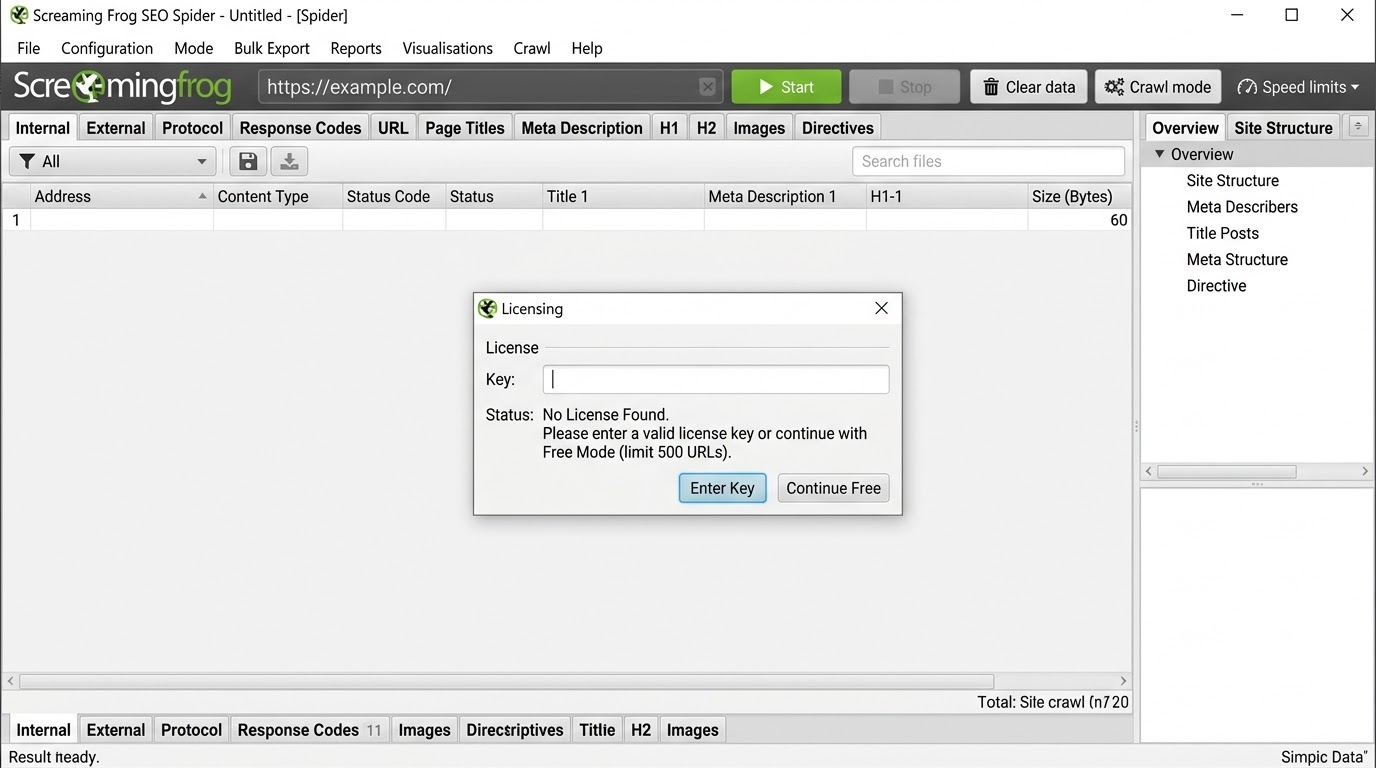
If you’re using the free version, you’re done with setup. You can start crawling immediately. If you have a paid Pro license (which is $99/year and optional), you’ll want to enter your license key. Go to the menu bar, look for License or Preferences depending on your operating system, and enter your license information. This unlocks the paid features like the ability to crawl more than 500 URLs and to use some of the advanced features we’ll talk about later.
Initial Configuration
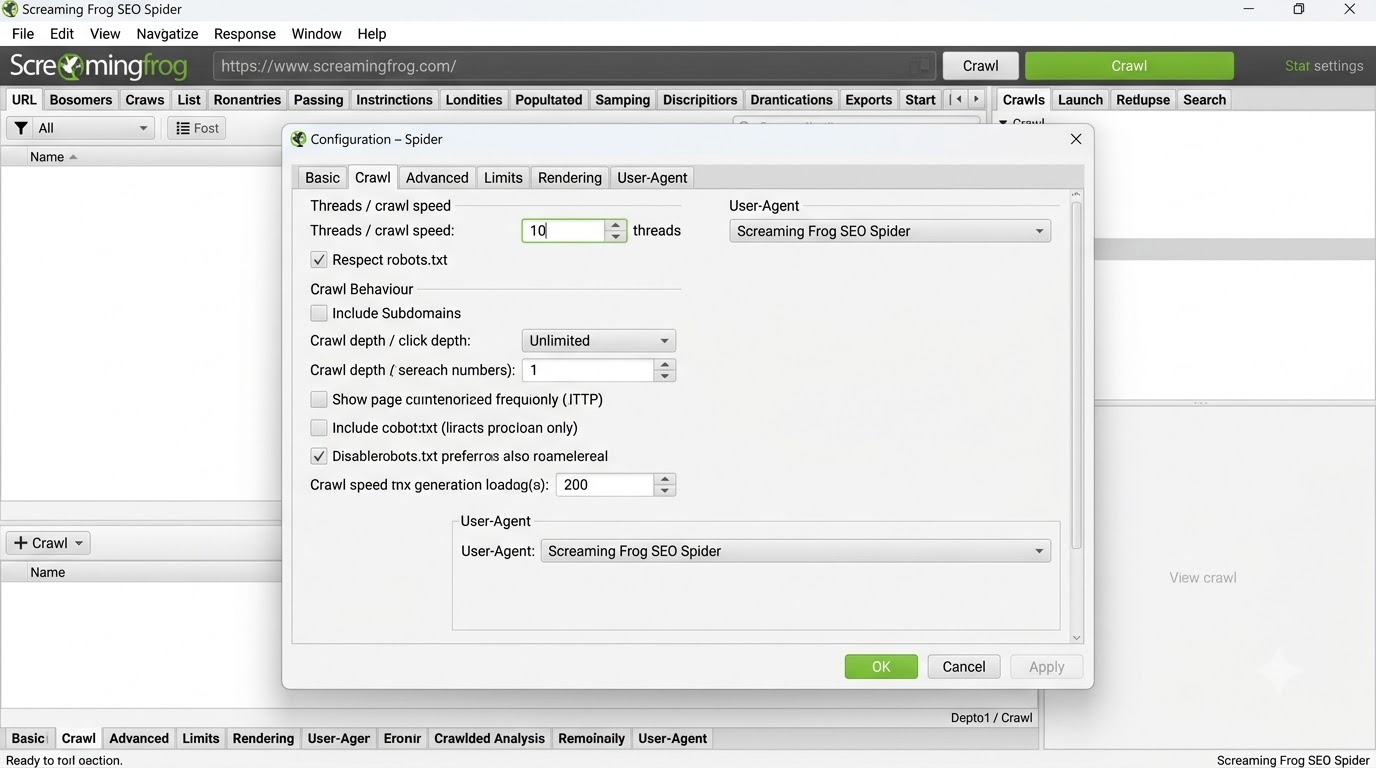
Before you run your first crawl, spend about 5 minutes configuring your preferences. This isn’t absolutely mandatory, but it makes your crawls more efficient and prevents potential issues. Open Preferences (usually under the main app menu or settings). Look for these key sections:
Spider Configuration Section: Here you set how aggressive the crawl will be. The default settings work fine for most people, but if your site is large or hosted on a slower server, you might want to reduce the number of threads (the number of simultaneous page requests happening at once). If you reduce threads from 10 to 5, the crawl will take longer but will be easier on your server. For most people on decent hosting, 10 threads is fine. If you’re on shared hosting or you see your site getting slow during a crawl, reduce it to 5 or even 3.
Respect Robots.txt Setting: Make absolutely sure this is checked. This tells Screaming Frog to respect your robots.txt file, which is the correct behavior. You want to crawl what Google would crawl, and Google respects robots.txt instructions. If you have directories you don’t want crawled, use robots.txt to block them, and Screaming Frog will respect that.
User Agent Configuration: The default user agent setting is fine for most crawls. This is just how Screaming Frog identifies itself to your web server.
Click Depth Setting: Leave this at unlimited for your first crawl. This means Screaming Frog will follow links until it finds all the pages on your site. Later, if you’re working on a massive site and want to limit the crawl for speed, you can set this to limit how many clicks deep from the homepage it goes.
Subdomain Configuration: If your site uses subdomains (like blog.yoursite.com or help.yoursite.com) and you want to crawl them as part of your audit, check the “Include Subdomains” option. Otherwise, leave it unchecked and they won’t be crawled.
These settings will ensure your crawl behaves properly and respects your site’s preferences. Once these are set, you’re ready to actually run a crawl.
Understanding the Crawl Settings
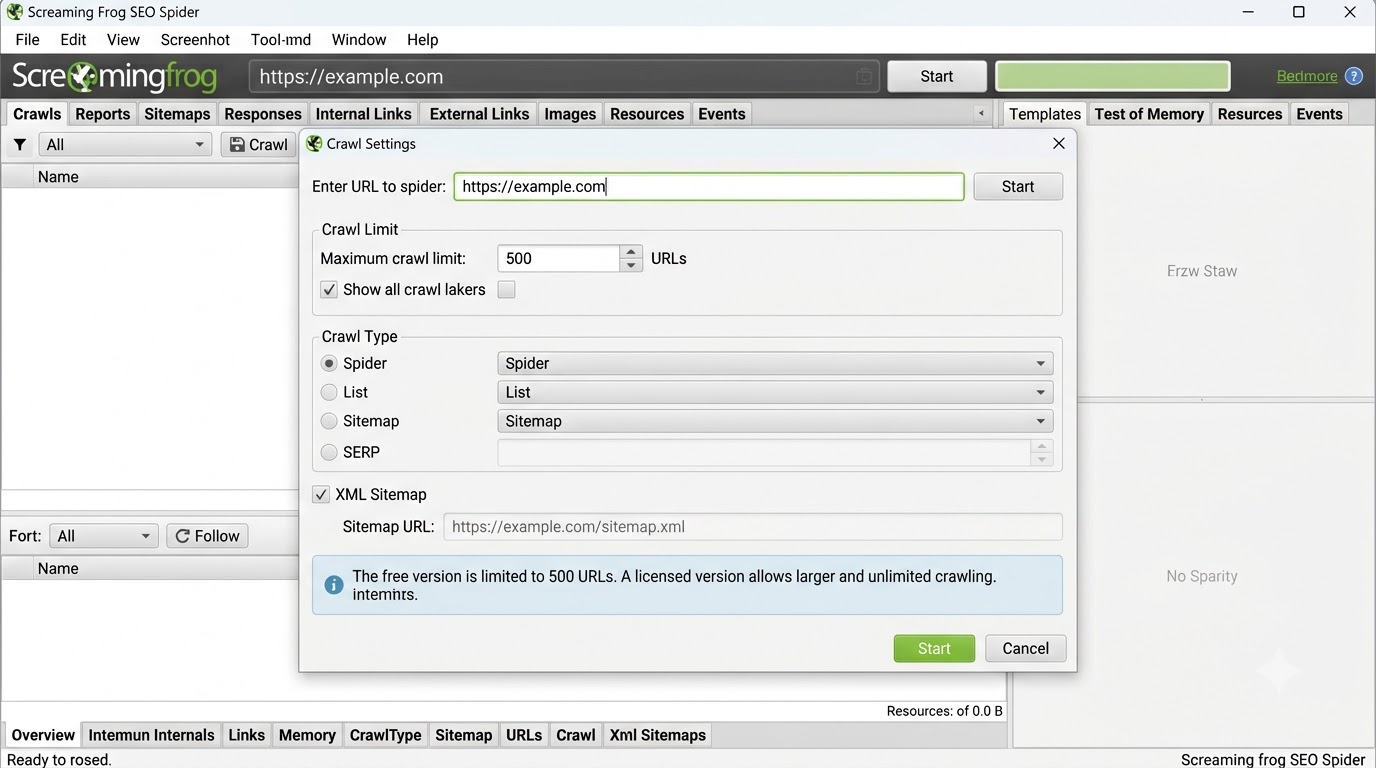
When you’re about to run a crawl, Screaming Frog gives you options before you hit start. Most of the time, the default settings are fine and you can just click start. But let me explain what you’re actually setting so you understand what’s happening under the hood.
Crawl Limit Section: This is where you set how many URLs to crawl maximum. In the free version, this defaults to 500 URLs. If your site is smaller than 500 pages, you’ll crawl the entire site. If your site is larger, you’ll only crawl the first 500 URLs that Screaming Frog discovers. This is the main limitation of the free version. In the paid Pro version, there’s no limit, so you’ll crawl your entire site no matter how many pages it has.
Crawl Type Selection: You can choose to crawl from your sitemap (if you have an XML sitemap, which you should) or to crawl by following links from your homepage. Crawling from your sitemap is usually better if you have one because it ensures you catch all the pages you’ve intentionally listed in your sitemap. If you don’t have a sitemap or if you want to see what Screaming Frog discovers by following links naturally from your homepage, choose the standard crawl option.
Starting URL: Make sure you’re entering the URL exactly as Google sees it. If Google sees www.example.com, enter https://www.example.com. If Google sees example.com without the www, enter it that way. If you’re crawling from the sitemap, just enter your domain.
These are the settings you’ll interact with most. Everything else is usually fine at default values and doesn’t need changing for standard crawls.
Crawling Your Website: Step-by-Step Guide
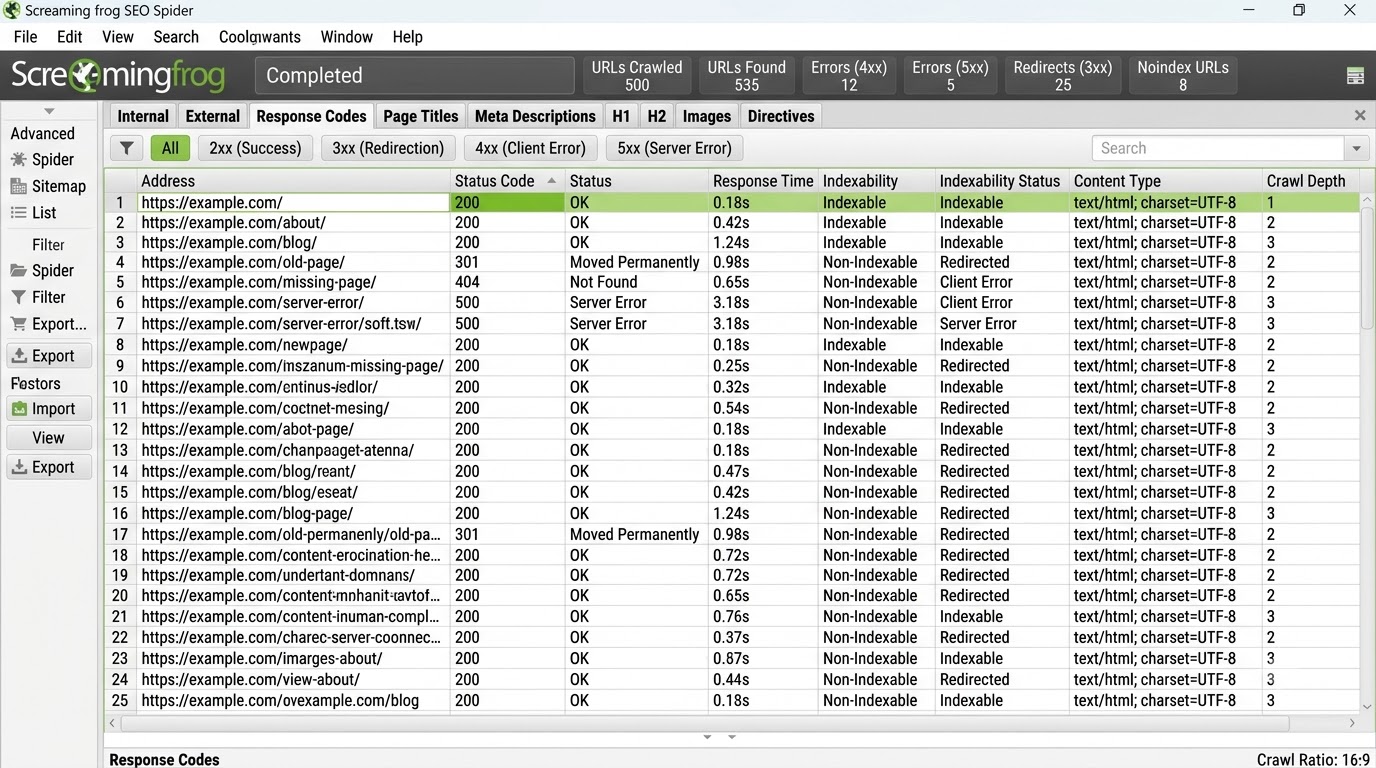
Now let’s actually run a crawl. This is the core of what Screaming Frog does and where the real value comes from.
Running Your First Crawl
Start Screaming Frog and you’ll see a text field near the top where you enter the URL you want to crawl. Enter the homepage of your site exactly as Google sees it. For example, if your site is example.com and Google indexes it as www.example.com, enter https://www.example.com (include the https and the www to match what Google sees). Make sure you’re using the same URL structure consistently. If Google sees www.example.com but you enter example.com without the www, you might get incomplete or weird crawl results because they’re technically different URLs.
Once you’ve entered the URL correctly, click the “Start” button or press Enter on your keyboard. Screaming Frog will start crawling. You’ll see a progress indicator showing how many URLs it’s found so far and how many it’s actually crawled so far. The crawl will continue until it’s found all the URLs on your site (up to your limit in the free version, which is 500) or until you manually stop it.
How long does this take? It depends on two main factors: the size of your site and how fast your server responds. A site with 100 pages might take 2 to 3 minutes. A site with 1,000 pages might take 15 to 20 minutes. A site with 10,000+ pages might take an hour or more. This is why patience is part of using Screaming Frog. You start the crawl, then go do something else—respond to emails, review other work, take a break. Come back when it’s done. Don’t sit and stare at the progress bar.
Once the crawl is complete, you’ll see a summary showing key metrics. It will tell you how many URLs it crawled, how many were duplicates, how many returned errors, how many contain noindex tags, and a bunch of other information. Pay close attention to this summary. If something seems wrong (like the number of pages is way higher or lower than you expected, or if there’s an unusually high number of errors), that’s worth investigating. It might indicate a problem with your site or a misconfiguration in how you set up the crawl.
Reading and Interpreting Crawl Results
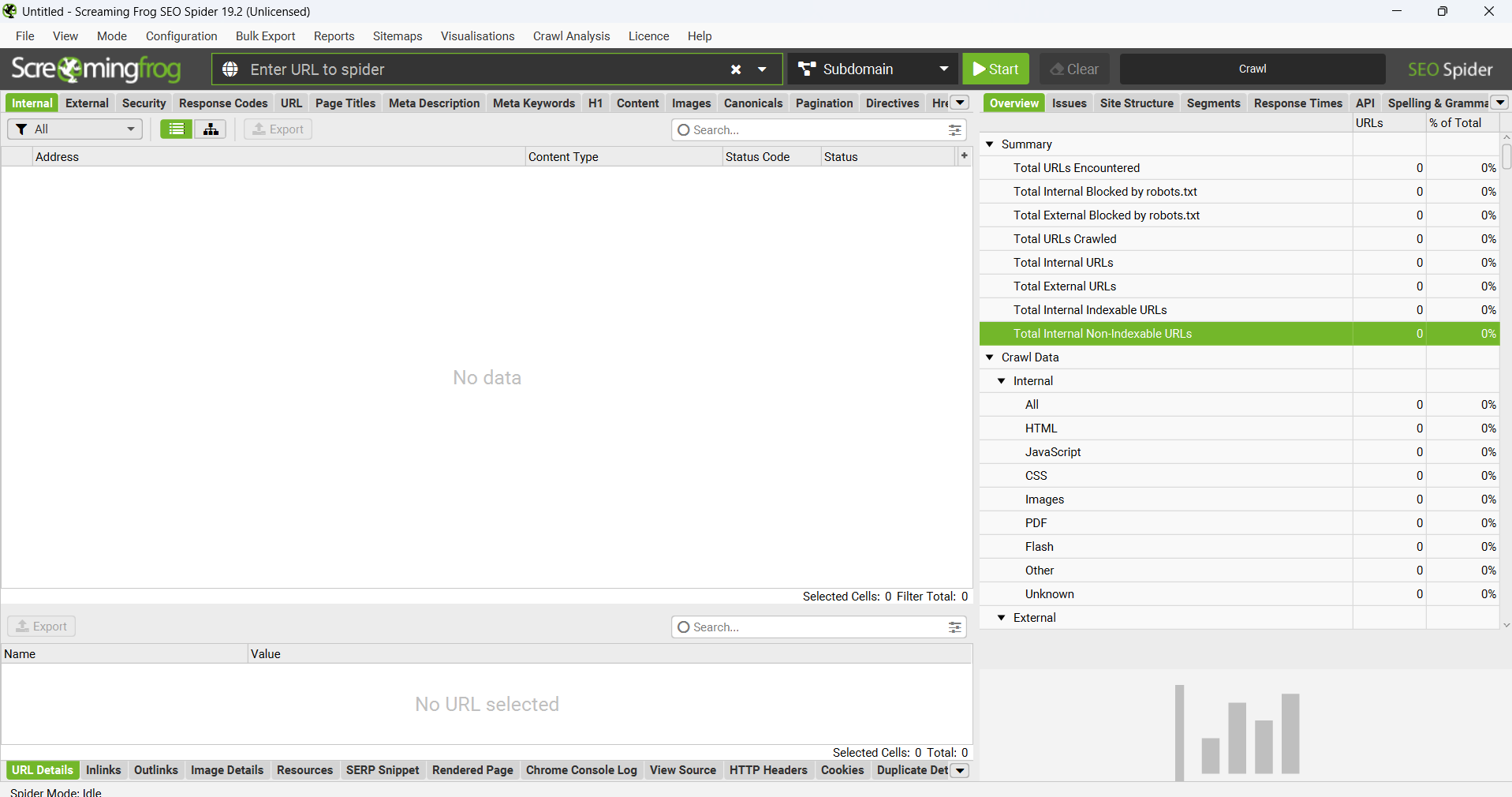
After the crawl completes, you need to understand what you’re looking at. This is where many people get lost. The main view shows a list of all the URLs that were crawled, along with various data about each one. By default, you see the URL, status code, and response time. But there are many columns available in Screaming Frog, and you can customize which ones you see.
The status code is the most important column to look at first. Look for anything other than 200, which is the good status code. Status codes like 301 or 302 (redirects), 404 (not found), 500 (server error), or 403 (forbidden) indicate potential issues or things worth understanding. You don’t have to fix all of them (some redirects are intentional and correct), but you should understand why each one is there and whether it needs attention.
The response time shows how long it took for each page to load and respond. Anything over 1 second is worth noting. Anything over 3 seconds is a definite performance problem that needs investigation. High response times suggest server issues, large image files, or inefficient code.
You can sort the results by any column. If you sort by status code, you’ll see all the 200s grouped together, all the 404s grouped together, etc. If you sort by response time, the slowest pages will be at the top. This is how you prioritize what to look at first and fix first.
There are tabs at the top of the results showing different views of the same data. The “Overview” tab shows a summary of what was found. The “All” tab shows every single URL crawled. But there are also tabs for “Directives” (showing sitemap and robots.txt information), “Response Codes” (URLs grouped by their status code), “Page Titles,” “Meta Descriptions,” and other categories. Explore these tabs to understand different views of the same crawl data.
For your first crawl, just get familiar with the layout. Don’t try to fix everything at once. Just understand what you’re looking at, what the main issues are on your site, and what they mean. Then we can talk about prioritizing what to fix first.
Advanced Crawl Options
Once you’re comfortable with running basic crawls, there are more advanced crawl options available, especially in the Pro version. These let you customize crawls for specific purposes.
Crawling Specifically from Your Sitemap: If you have an XML sitemap (and you should), you can crawl specifically from that sitemap instead of following links. This ensures you’re checking all the pages you’ve intentionally marked for indexing in your sitemap. Go to the “Crawl” menu and choose “Mode” then “Sitemap” to crawl from your sitemap instead of following links from the homepage.
List-Based Crawling: If you have a specific list of URLs you want to crawl (maybe a list of product pages or blog posts), you can paste them into a list and have Screaming Frog crawl just those specific URLs. This is useful when you want to do a targeted audit of a certain section instead of crawling your entire site.
Crawl Filters: Before running a crawl, you can set up filters to exclude certain types of URLs from being crawled. For example, you might want to exclude the /admin/ directory or all URLs with ?sort= parameters. This keeps your crawl focused on the content you actually want to audit and prevents wasting crawl time on pages you know have issues.
API Crawling with Google Integration: In the Pro version, you can connect Screaming Frog to your Google Search Console and Google Analytics accounts. This pulls actual performance data from those sources and adds it to your crawl results. So you can see not just what’s on your site technically, but also which pages are actually getting clicks in search results, impressions, and how they’re performing. This combination is incredibly powerful.
These are more advanced options that you’ll use once you’re comfortable with basic crawling. For now, focus on running a standard crawl and understanding the results.
Understanding and Analyzing Crawl Data
Once you have crawl results, the next question is: what do you actually do with them? Having data is one thing. Using data to make decisions is another. Here’s how to analyze the data in a way that leads to real action and improvements.
Identifying High-Priority Issues
Not all crawl issues are equal in importance. Some are critical and need immediate attention. Others are nice to fix but not urgent. Some aren’t really issues at all. Here’s how to prioritize what you work on first.
Critical Issues (Fix These First):
Broken internal links (pages returning 404 errors) are high priority. Every broken link is a wasted crawl opportunity for Google and a bad user experience for visitors. If you have more than a handful of broken links, fix them. Delete the pages if they’re genuinely gone and no longer needed, or fix the internal links that point to them. Either way, broken links shouldn’t exist on a professional website. Search engines notice them, and so do visitors.
Redirect chains are worth fixing if you have many of them. One redirect is fine. A chain of three or more redirects means Google wastes its crawl budget going through each redirect instead of using that budget to crawl new content. Screaming Frog identifies these automatically. Consolidate them so pages redirect directly to their final destination.
Duplicate meta descriptions are an easy win. If 100 pages have the same meta description, that’s a problem because each page needs a unique description that accurately describes that specific page’s content. Screaming Frog shows you duplicates immediately. Fix them and you’ll likely see a ranking improvement because Google gets clearer understanding of what each page is actually about.
Missing H1 tags or having multiple H1 tags on a page is worth fixing. Each page should have exactly one H1 tag that clearly states what the page is about. Screaming Frog can show you pages that don’t follow this pattern. It’s a quick fix that improves SEO.
Medium Priority Issues (Fix These Next):
Pages with very slow response times are worth investigating, but not as critical as broken links. If you have pages that take 3+ seconds to load, that’s a performance problem worth addressing. But you don’t need to optimize every page that takes 2 seconds to respond.
Very short meta descriptions or page titles are worth noting and fixing. If you have pages where the meta description is less than 100 characters, that’s wasted real estate. You could expand it to better describe the page and potentially improve click-through rates from search results.
Pages that are duplicates of other pages (having the same title, description, and content) might need consolidation or canonical tags. Screaming Frog can help identify these patterns.
Low Priority Issues (Nice to Have):
Minor issues like a page that responds in 1.5 seconds instead of 1 second aren’t worth much effort. Focus on the things that have a real impact on rankings and user experience. Don’t let perfectionism paralyze you.
Creating an Action Plan from Crawl Data
Once you’ve identified the issues, create an actual action plan. A spreadsheet works perfectly for this. List the issue (e.g., “300 duplicate meta descriptions”), the number of pages affected, the priority level, and the specific action you’ll take to fix it. This becomes your SEO roadmap for the next few weeks.
Start with high-priority items that will take the least time to fix. If you can fix 300 duplicate descriptions in an afternoon by writing unique descriptions or using a template-based approach, do that first. You’ll get quick wins that feel good and that actually improve your SEO.
Then move to the bigger projects. If you have performance problems, that might require developer time or hosting upgrades. That’s fine. Put it in the plan and work with your developer on it. The point is to be systematic and intentional. Don’t just randomly try to fix things. Use the crawl data to identify what matters, prioritize it, and work through it systematically over time. That’s how you go from running a crawl to actually improving your SEO and rankings.
Advanced Screaming Frog SEO Spider Techniques
Once you’re comfortable with the basics and have run a few crawls, there are more sophisticated ways to use Screaming Frog that can give you deeper insights.
Custom Data Extraction Using CSS Selectors
In the paid Pro version, you can extract custom data from your pages using CSS selectors or regular expressions. This is useful when you want to pull information that isn’t in the standard crawl fields. For example, you might want to extract:
Product prices from an e-commerce site. You’d use CSS selectors to point to the HTML element containing the price, and Screaming Frog would extract the actual price for every product page during the crawl.
Author names from blog posts. If author information is in a specific div or class on your pages, you can extract it automatically.
Review counts or ratings. If star ratings or review counts are on your pages, you can extract them.
JSON-LD structured data. If you have schema markup on your pages, you can extract specific fields from that structured data.
Custom metadata or tags. Any data that’s in your page HTML can be extracted.
Once you’ve set up the extraction rules, Screaming Frog pulls this data during the crawl and displays it as columns in the results alongside everything else. You can then filter and analyze based on this custom data. For example, you might find that product pages with prices under $50 have higher bounce rates, or blog posts by certain authors rank better than others. This kind of data-driven insight is powerful for optimization decisions.
Advanced Log File Analysis
If you have access to your server logs, Screaming Frog can analyze them. This is more advanced and technical, but it gives you insights into how Google is actually crawling your site, which is different from how you crawl it with Screaming Frog yourself.
Server logs show you every request that hits your server, including requests from Google’s crawlers. By analyzing these logs, you can see which pages Google is crawling most frequently, how often it visits, which user agents it’s using, and whether it’s hitting errors when it crawls.
This is valuable because it reveals mismatches between what you think is happening and what’s actually happening. Maybe you think Google crawls your site every day, but the logs show it only crawls once a week. Maybe Google is hitting errors you can’t see from the outside. Maybe it’s spending crawl budget on parameter pages you don’t think are important.
To do this, you need to export your server logs from your hosting, upload them to Screaming Frog, and let it analyze them. It takes more setup than a regular crawl, but the insights are worth it if you’re serious about understanding your crawl budget and how Google actually interacts with your site.
Integration with Google Search Console and Analytics
The Pro version of Screaming Frog connects directly to your Google Search Console and Google Analytics accounts. This means you can see which pages are getting impressions and clicks in search results right inside Screaming Frog, alongside your crawl data. This is powerful.
This answers questions like: “Which of my pages are being crawled but getting zero impressions?” or “Which pages have clicks but very low click-through rate?” You can then prioritize fixing pages based on actual search performance, not just based on technical issues you found.
For example, if a page is crawled, is getting 200 impressions in Search Console, but only has a 1% click-through rate, that’s a meta description problem. Your description isn’t compelling enough. Write a better, more compelling description and you’ll likely boost CTR significantly and gain more clicks and traffic from that page.
Creating Customized Reports
You can customize what Screaming Frog’s reports show to focus on what matters most to you and your situation. Maybe you only care about seeing pages with 4xx errors and slow response times. You can filter the results to show only those pages and then export that report.
This is useful when you’re presenting results to a client or to a developer. Instead of overwhelming them with thousands of rows of data, you can show them a focused report highlighting only the specific issues they need to fix.
Comparing Screaming Frog to Alternative Tools
Screaming Frog isn’t the only tool available for crawling and auditing your site. There are alternatives worth understanding. Let me explain how they compare.
Screaming Frog vs. Google Search Console
Google Search Console is free and pulls data directly from Google about how your site actually appears in search results and performs. Screaming Frog crawls your site the way Google does but from your own perspective and on your own schedule. They serve different purposes. Google Search Console tells you how you’re actually performing in search and what Google thinks about your site. Screaming Frog tells you what technical issues exist on your site. You need both. Google Search Console is free, so there’s zero reason not to use it. Screaming Frog is the more comprehensive technical auditing tool for deep analysis.
Screaming Frog vs. Ahrefs or SEMrush
Ahrefs and SEMrush are full-featured SEO platforms that include crawling as one feature among many. They also do backlink analysis, keyword research, rank tracking, content analysis, and more. Screaming Frog is focused specifically on crawling and auditing. Ahrefs and SEMrush crawl from their own servers, so you see a cached view of your site, not a real-time crawl from your computer. They’re useful for different reasons. If you need to know how fast your site actually loads right now or what crawl errors exist at this moment, Screaming Frog is better. If you need to know backlinks or track keyword rankings over time, Ahrefs or SEMrush are better. Many people use both.
Screaming Frog vs. Sitebulb
Sitebulb is another enterprise-level crawling tool built for agencies and larger teams. It’s more expensive than Screaming Frog and includes more advanced features like AI-powered issue detection, network visualization, and collaborative features. If you’re managing multiple large sites or you need advanced visualization features, Sitebulb is worth considering. But for most beginners and small to medium sites, Screaming Frog does everything you need at a lower price point and with a simpler interface.
Screaming Frog vs. Manual Audits
You could theoretically audit your site manually, going through each page and checking for issues. But this would take weeks or months for anything larger than a tiny site. Screaming Frog does in an afternoon what would take you a month manually. That’s the value proposition. It automates the auditing work so you can focus on understanding results and making fixes.
The bottom line: Screaming Frog is the best tool specifically for crawling and auditing your site. If you need just one crawling tool, this is the one. If you’re running a serious SEO operation, you’ll probably use Screaming Frog alongside Google Search Console and a broader platform like Ahrefs for backlink and ranking data.
Conclusion
Screaming Frog SEO Spider is a tool that every serious SEO person should know how to use. It gives you visibility into the technical foundation of your website in a way that nothing else does. Run a crawl, understand the results, and fix the issues you find. It’s not complicated, but it is systematic and it works.
The keyword “Screaming Frog SEO Spider” gets thrown around a lot in SEO circles and communities because it’s genuinely useful. Not because it’s trendy, but because it solves a real problem: you need to know what’s actually on your site and whether Google can crawl it properly. Once you know that, you can make informed decisions. And decisions based on data beat guesses every single time.
If you haven’t used Screaming Frog before, download the free version today and crawl your site. Spend an afternoon understanding the results. Pick the top 3 to 5 issues and actually fix them. Within a few weeks, you’ll see the impact on your rankings and traffic. That’s how this works.
Frequently Asked Questions
What is the difference between Screaming Frog free version and the paid Pro version?
The free version of Screaming Frog crawls up to 500 URLs per project, which is enough for most small sites and for getting a feel for how the tool works. The paid Pro version removes the 500-URL limit entirely, allowing you to crawl entire large sites with thousands of pages. Pro also includes custom extraction capabilities so you can pull specific data from your pages, direct API integrations with Google Search Console and Google Analytics for performance data, advanced filtering options, and priority customer support. For learning or auditing small sites under 500 pages, the free version is sufficient. For medium to large sites or when you need advanced features, Pro is worth the annual investment.
How often should I run a Screaming Frog crawl on my website?
For most websites, running a crawl monthly is a good baseline frequency. If you’re actively making changes to your site, adding many new pages, or updating content regularly, crawl more frequently (weekly or bi-weekly). If your site rarely changes and is fairly stable, quarterly crawls are acceptable. The key is having fresh data to work with. Stale crawl data from several months ago won’t tell you about recent issues or changes on your site. Monthly crawls let you catch problems and monitor improvements over time.
Can Screaming Frog crawl password-protected areas of my website?
Yes, Screaming Frog can crawl password-protected pages if you configure it properly. In the preferences, you can add authentication details (username and password) so the crawler can access login-protected pages. This is useful if you’re auditing membership sites, admin areas, or other password-protected sections. Without authentication configured, Screaming Frog will see 403 forbidden errors for those pages and won’t be able to crawl them.
Why does my crawl show more pages than I think my website has?
This usually happens because pages with parameters (like ?page=2, ?sort=price, ?filter=color) are being counted as separate pages. Screaming Frog might also be finding pages you don’t think are indexed, like alternate versions of pages, mobile versions, or pages you thought were removed but still exist. Review the full list of crawled URLs to see what’s being counted and why. If you want to exclude parameter pages from crawls, use robots.txt or configure crawl filters.
How do I fix the duplicate meta descriptions issue that Screaming Frog found?
First, export the crawl results to a spreadsheet so you can see which pages have duplicate descriptions. Identify the groups of pages sharing the same description. Then write unique, descriptive meta descriptions for each page that accurately describes that specific page’s content. Good descriptions are 120 to 160 characters and should include your primary keyword naturally. Once written, update them on your site via your CMS or by editing the HTML files directly. Run another crawl after a few days to verify that the duplicates are gone.
Is using Screaming Frog safe for my website? Will it slow down my site?
Screaming Frog is safe to use when configured properly. It respects your robots.txt file and crawl preferences, behaving similarly to Google’s crawler. However, if you’re crawling a very large site on shared hosting, the aggressive crawl activity could cause server load issues. To minimize any impact, reduce the thread count in settings before crawling a large site (use 5 threads instead of 10). Monitor your site’s performance during the crawl. Screaming Frog is designed to be respectful, but an aggressive crawl on an underpowered server could cause temporary slowdowns.
Can Screaming Frog find pages that Google hasn’t indexed yet?
Yes, Screaming Frog crawls what’s actually on your site and is technically available, whether Google has found and indexed those pages or not. If you have pages that are crawlable but haven’t been indexed yet by Google, Screaming Frog will find them. You can then investigate why Google hasn’t indexed them using Google Search Console’s URL Inspection tool to understand if there are issues preventing indexation.
What’s the practical difference between HTTP 301, 302, and 404 status codes?
A 301 is a permanent redirect, used when a page has permanently moved to a new location. A 302 is a temporary redirect, used when a page is temporarily unavailable or moved temporarily. A 404 means the page doesn’t exist. Screaming Frog shows all of these in crawl results. For permanent page moves, always use 301 redirects to pass link equity. Avoid 302s for permanent moves, as they don’t pass full link value. If a page returns 404 and is genuinely gone, set up a 301 redirect to a related page.
How do I interpret the crawl depth metric shown in Screaming Frog results?
Crawl depth shows how many clicks (links) away from your homepage each page is. Your homepage is depth 0. Pages directly linked from the homepage are depth 1. Pages linked only from depth 1 pages are depth 2, and so on. Generally, important pages should be at shallow depth (2 to 3 clicks from homepage) so Google doesn’t have to dig deep to find them and can prioritize them. Pages at depth 5 or deeper might be overlooked by Google and deprioritized in crawling.
Can I use Screaming Frog to audit and crawl my competitors’ websites?
Technically yes, you can crawl any public website, including competitors’ sites. This can give you insights into their site structure and technical SEO approach. However, crawling someone else’s server too aggressively or repeatedly could be seen as hostile and might violate their terms of service. If you do competitive analysis, use a respectful crawl with fewer threads and don’t hammer their server repeatedly. Focus on understanding their approach rather than causing problems.
Why are there so many “noindex” tags appearing in my Screaming Frog crawl results?
Pages with noindex tags are pages you’re explicitly telling search engines not to index. Screaming Frog will still crawl them (because they’re technically on your site), but will report the noindex directive. This is often correct (for example, thank you pages, duplicate content versions, or tag pages should have noindex). But if important pages or pages you want indexed have noindex accidentally, remove the tag. Review why each noindex page has the tag and decide if it should stay or be removed.
Does Screaming Frog show me which pages actually rank in Google search results?
No. Screaming Frog shows what’s on your site and technical issues. To see which pages rank, perform well in search results, and how they’re performing, use Google Search Console. When you connect Screaming Frog Pro to your Google Search Console account, that ranking and performance data gets added to your crawl results, which is very powerful. But Screaming Frog alone doesn’t show rankings or search performance data.